
Bujetor App · Product design · 2024–2026
A meal plan you can talk to
Bujetor plans a family’s meals to a budget. A person says how much they can spend, for how many days and who is eating, and gets a plan with a price for every dish and a shopping list. I led its design as senior product designer, with two junior designers, a product owner and a team of developers.
- Client
- Bujetor App
- Role
- Senior product designer
- Status
- In development
- Platform
- iOS
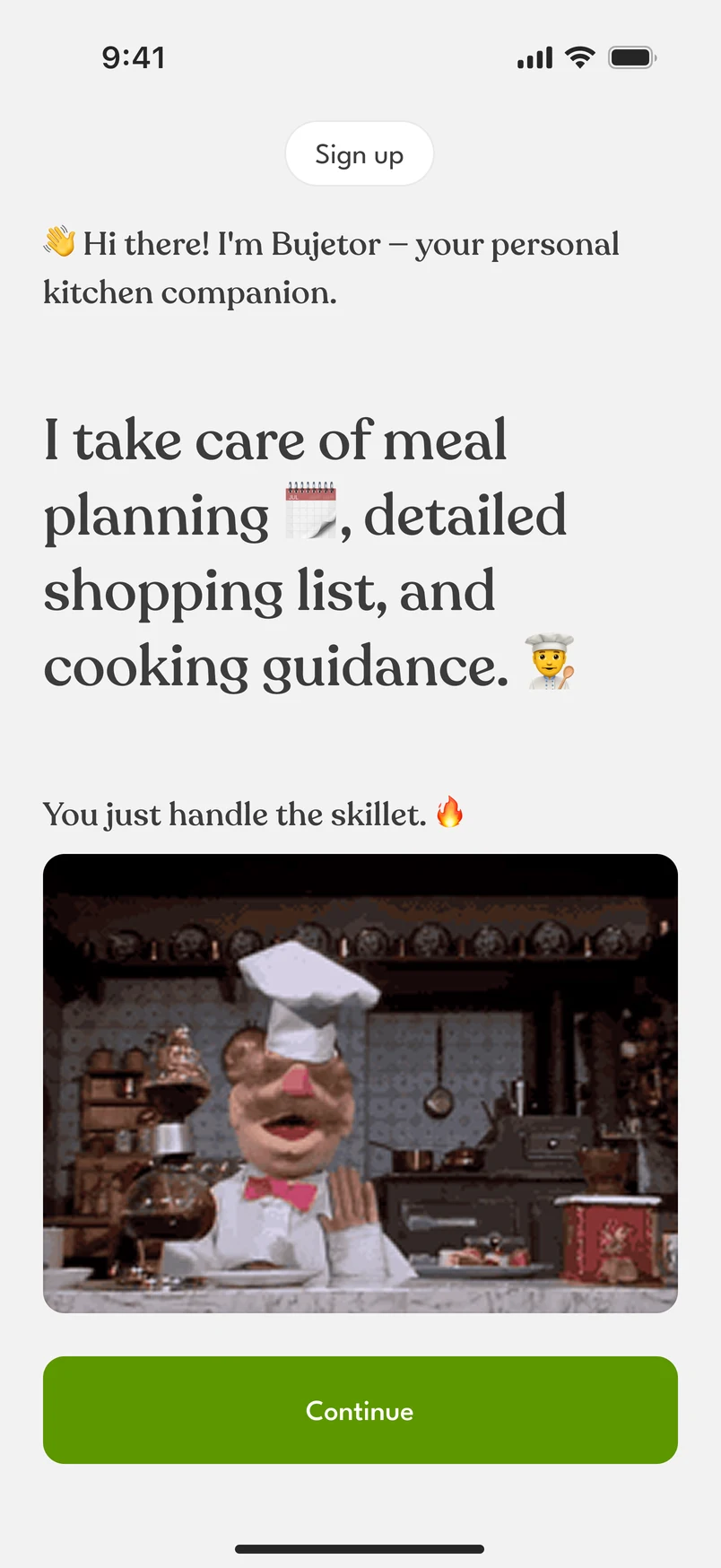
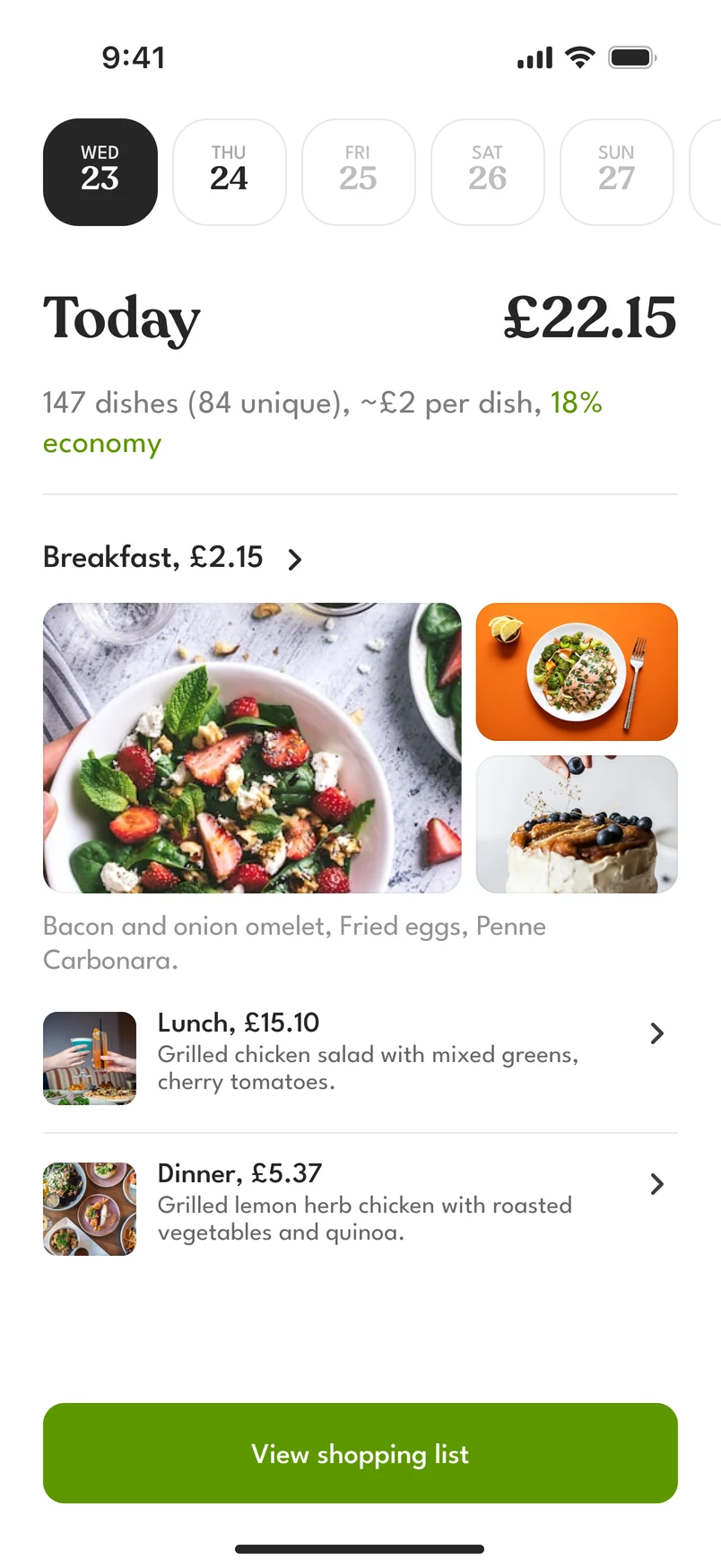
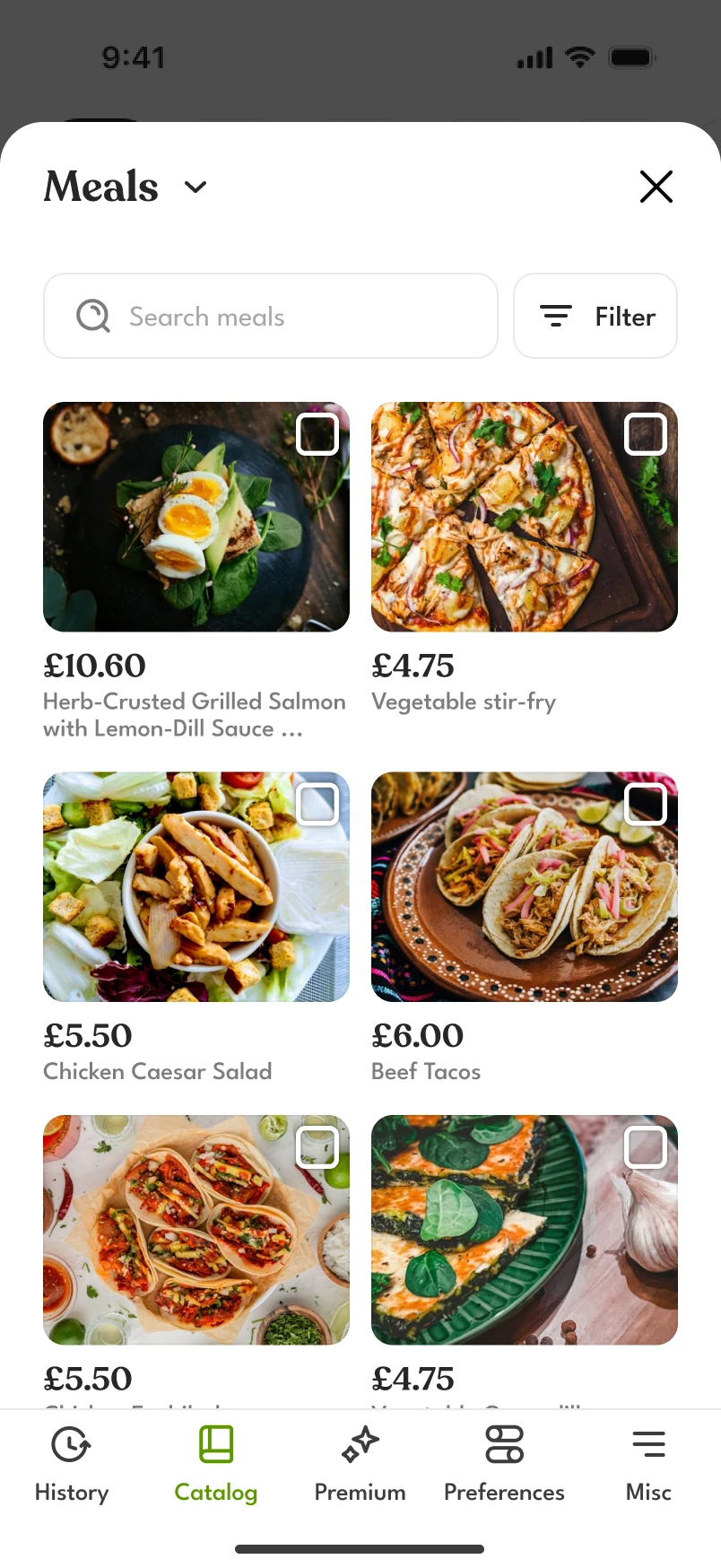
The welcome, a day of the plan with its cost, and the catalog.
- Where it started
- The client came with the idea of a meal planner that talks to people through a language model. Everything else was open. We worked it out as a team over many iterations.
- What we built
- A chat that answers with cards. A card opens a screen where the plan can be changed by tapping, and what is done there is written back into the chat.
- Scope
- Onboarding, the conversation and its cards, the plan from week to dish, the catalog, the shopping list and ordering, cooking, profiles and support, in light and dark themes.
Directions we dropped
Three other models were dropped on the way.
- Everything in the chat
- A family’s week is a table of days, meals and people, and editing a table by talking is slow. It would also break what people expect of an app: how screens behave, how one follows another, how a form looks.
- A Pinterest for meals
- Assembling and reviewing a plan in it was cumbersome, and so was tracking habits and savings.
- A Tinder for meals
- We wanted a long relationship with a family, with goals set and habits, allergies and preferences learned over time. Tinder’s model was too fast and casual for that.
Chat and screens
Why a chat
We built the app around a chat because it is often easier to say or type what is wanted than to find the button for it, most of all in an app that is new to the person.
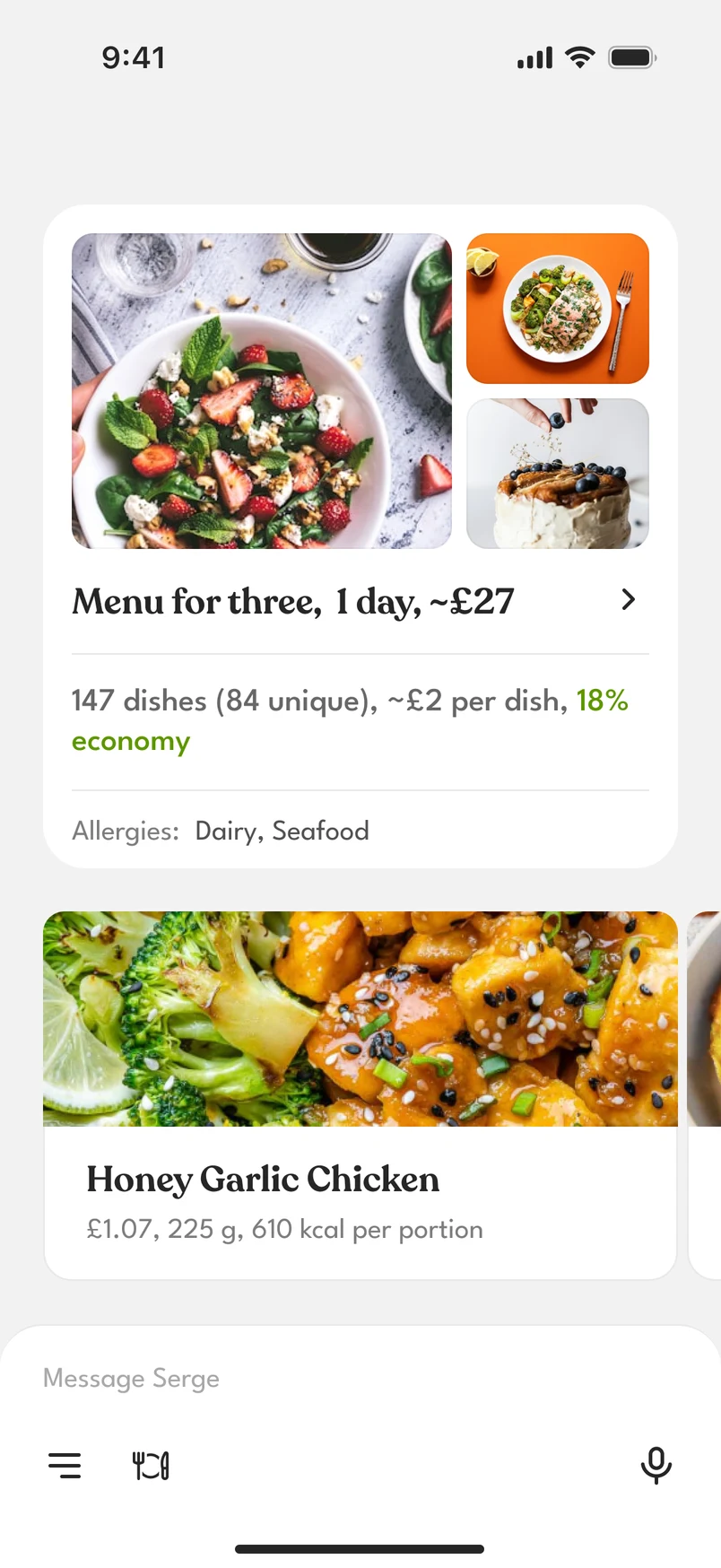
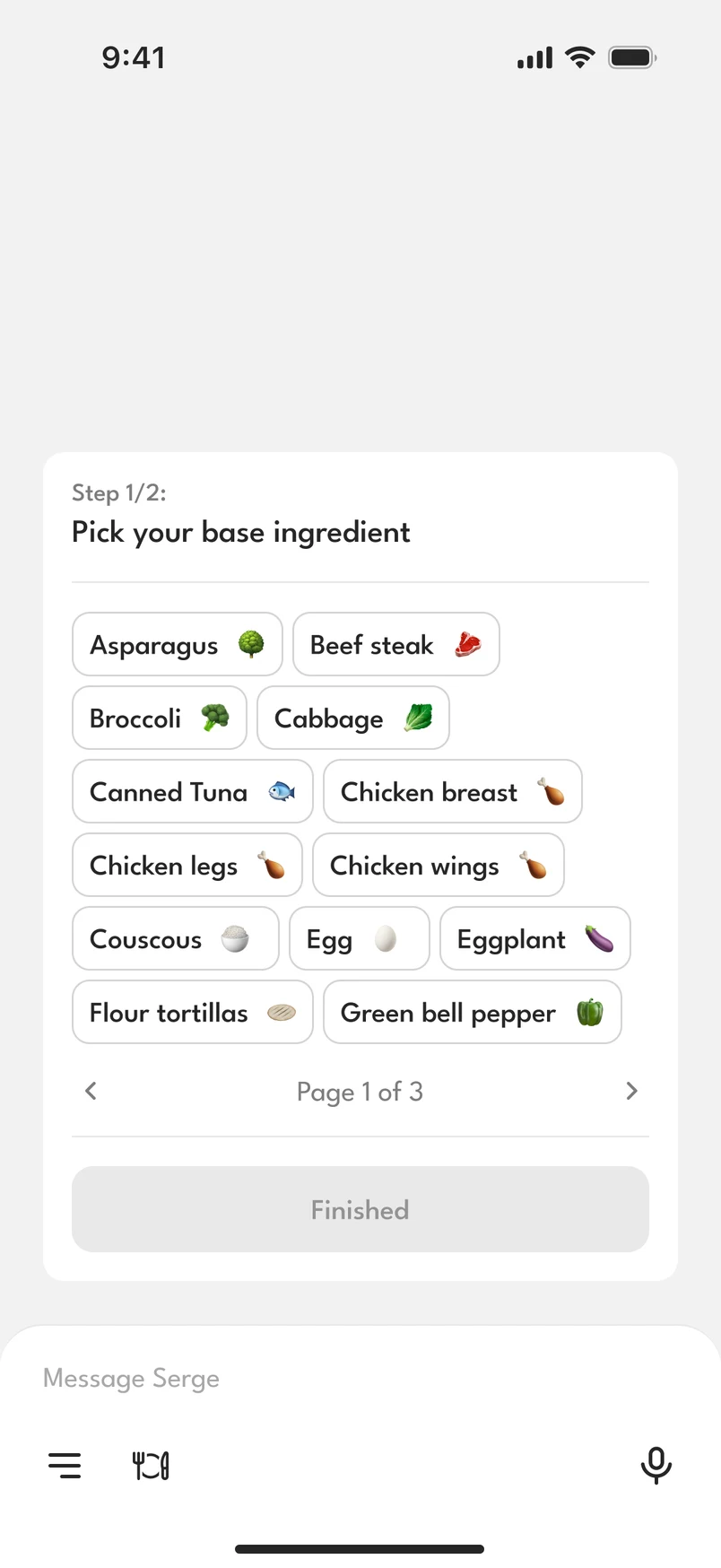
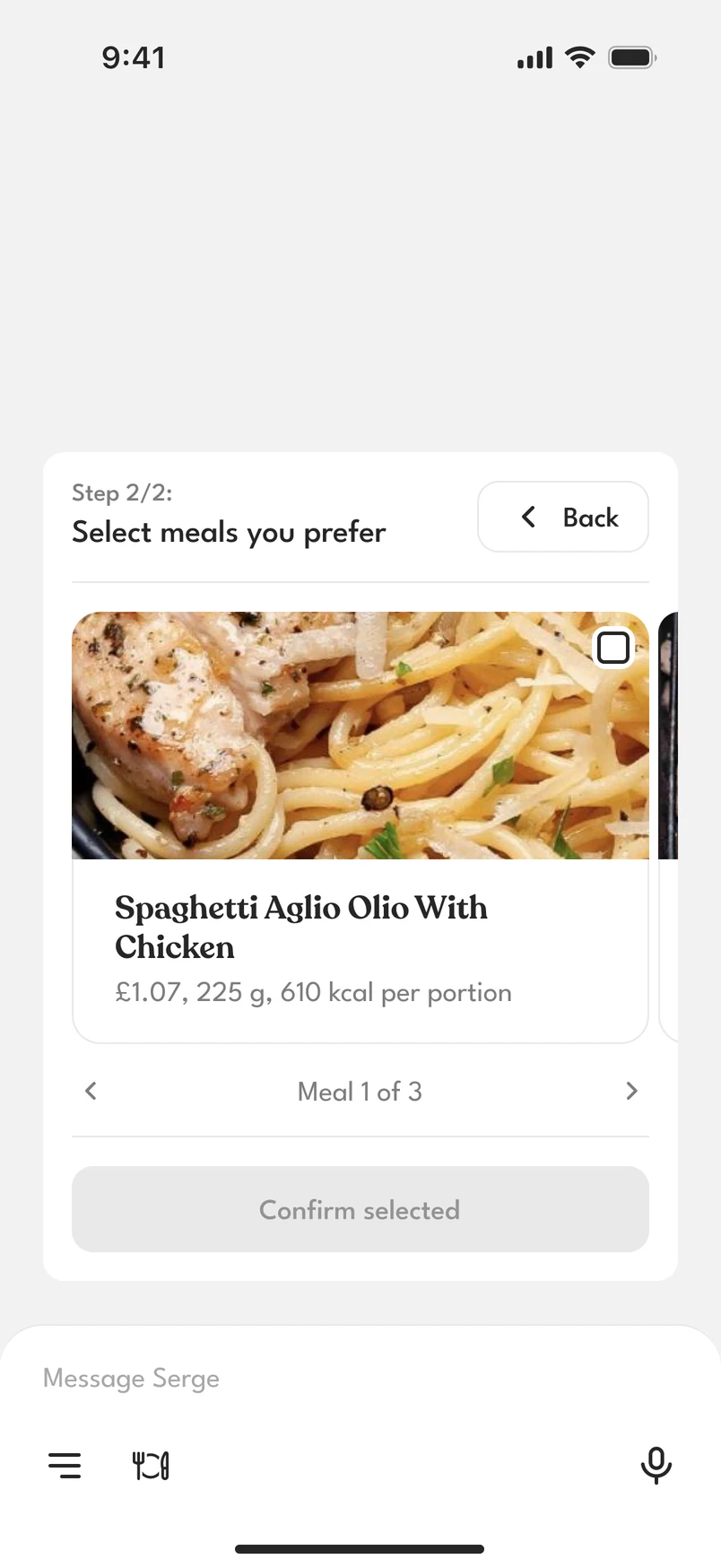
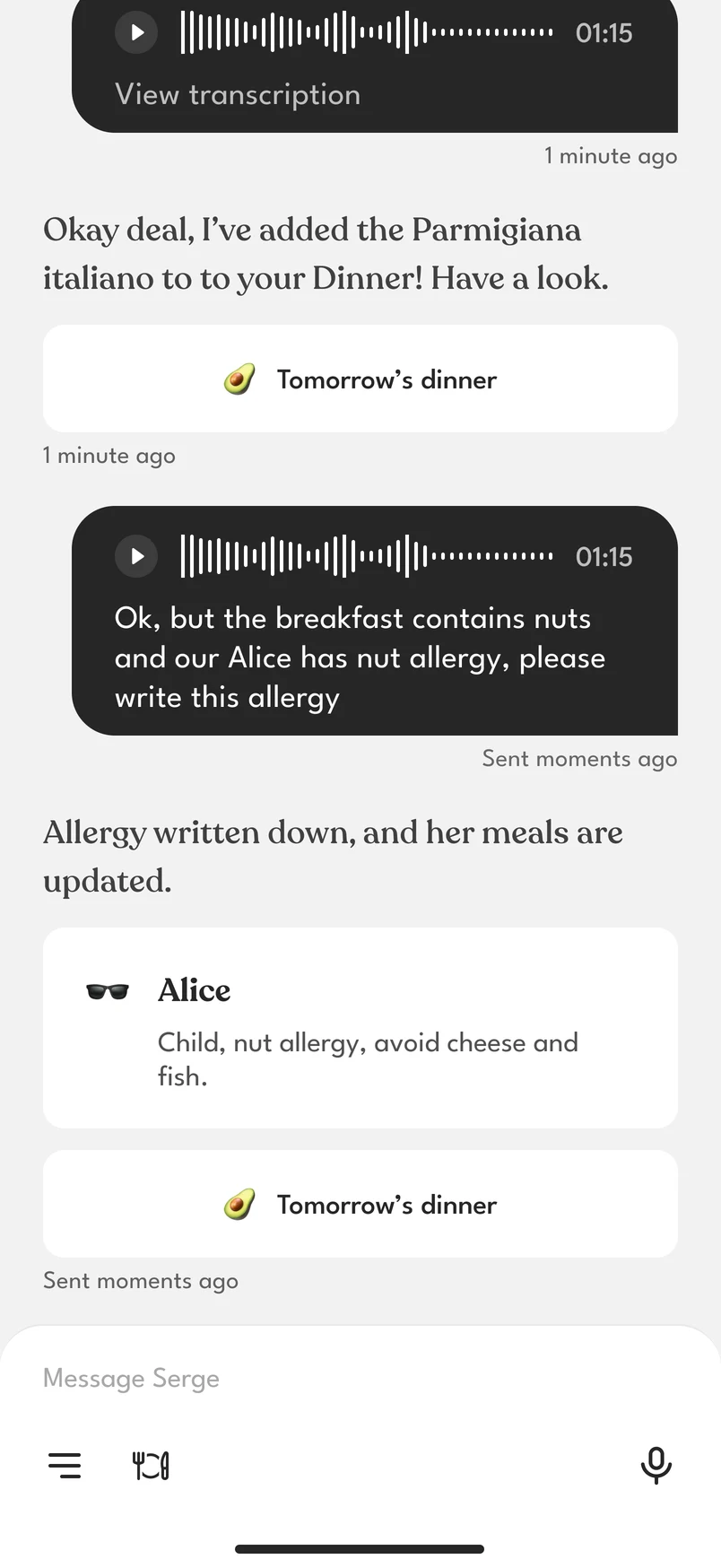
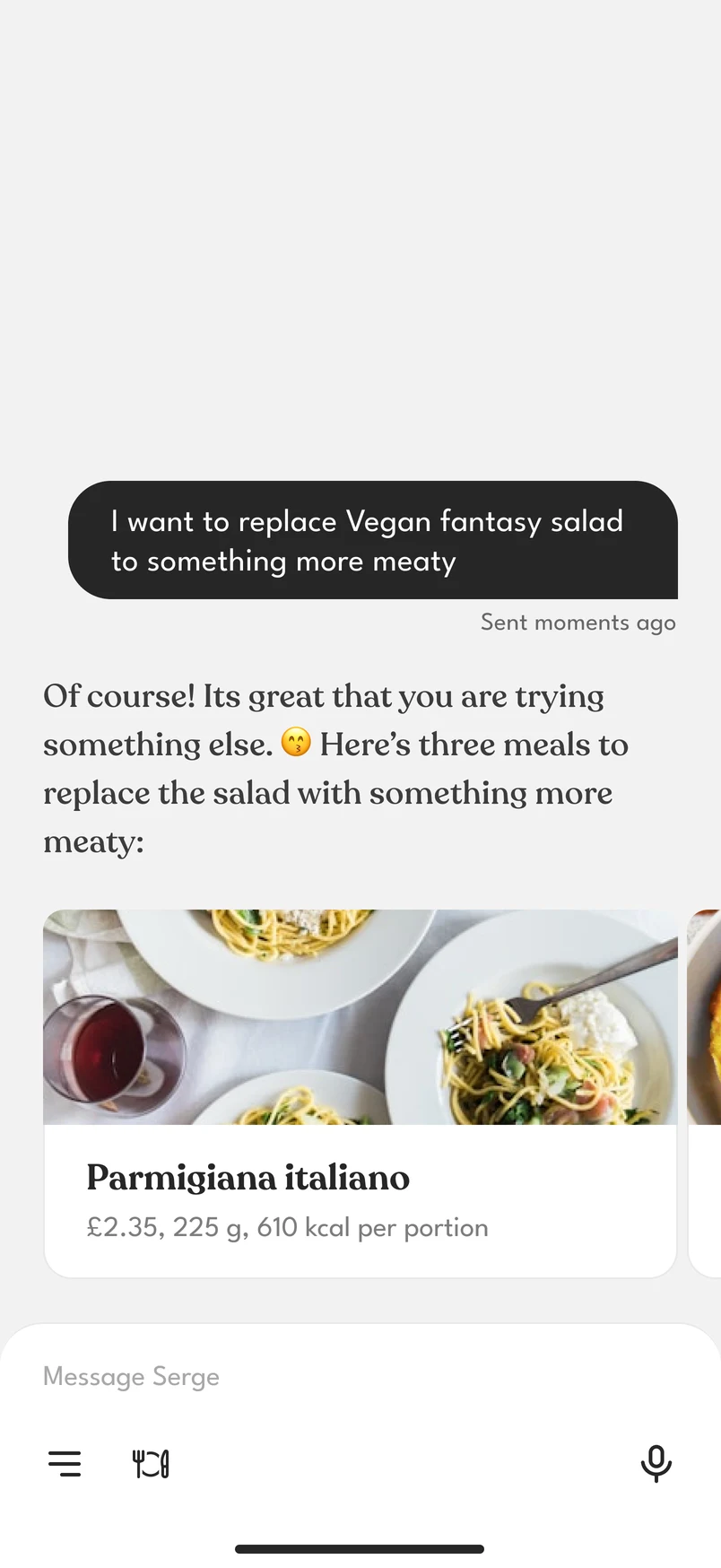
The assistant answers with cards for a plan, a set, a dish, a person or a link, and each card opens its screen.
The assistant has no bubble
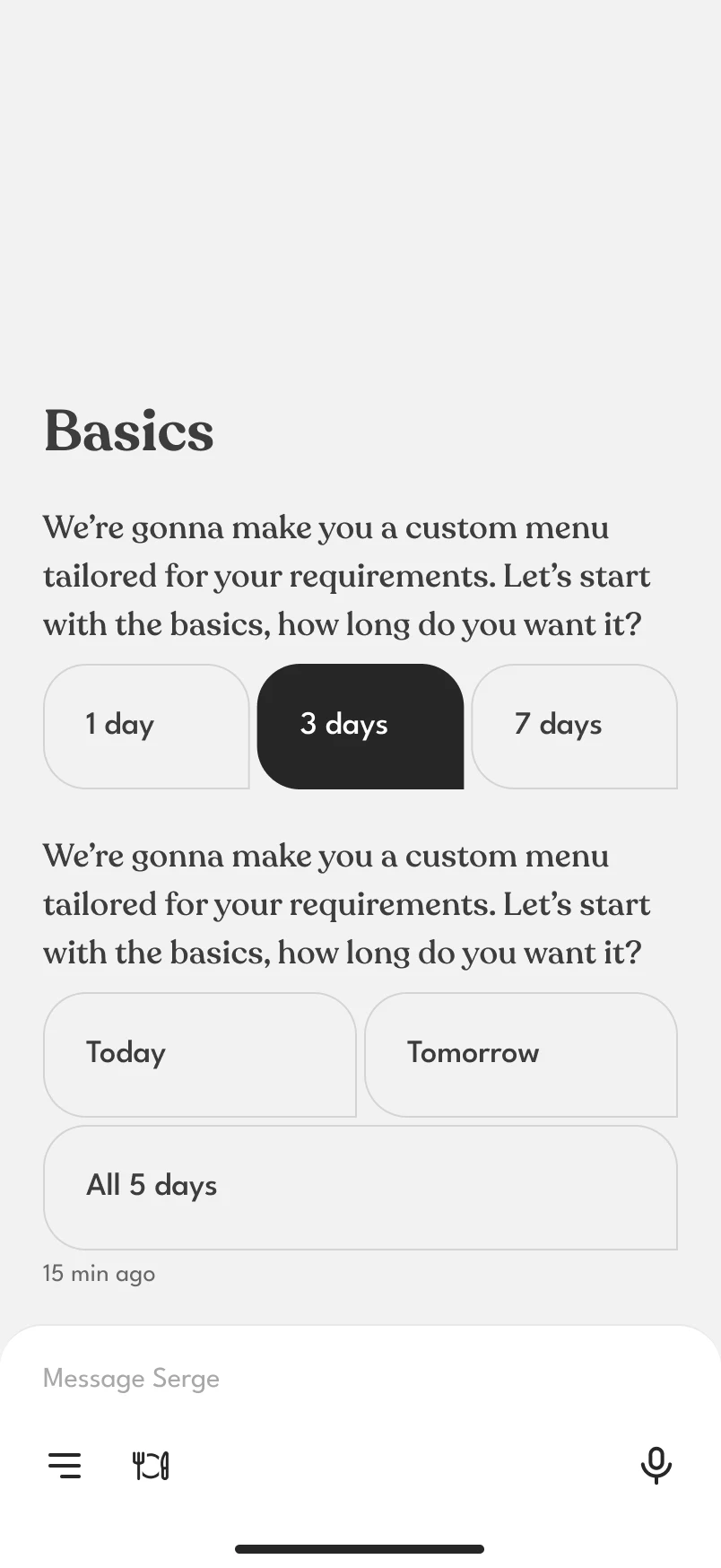
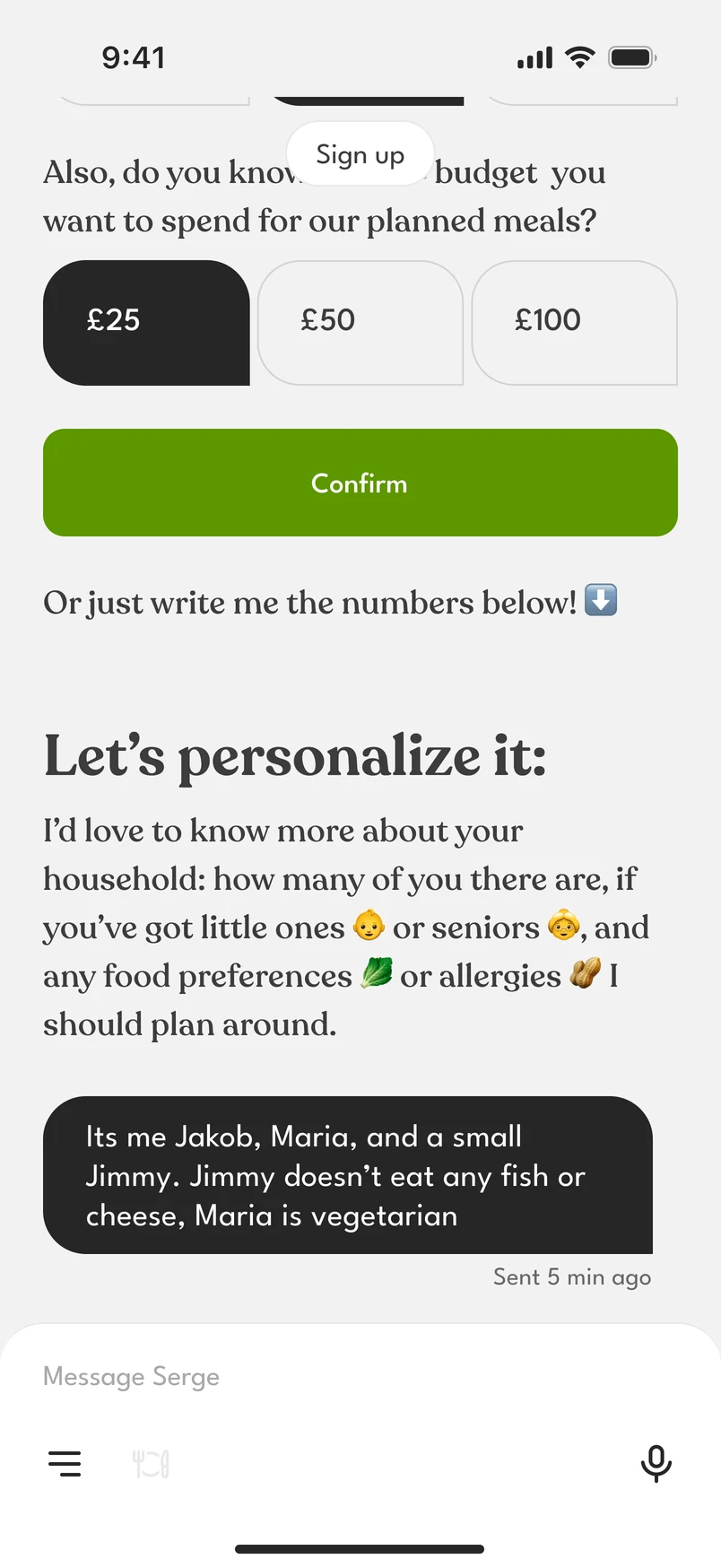
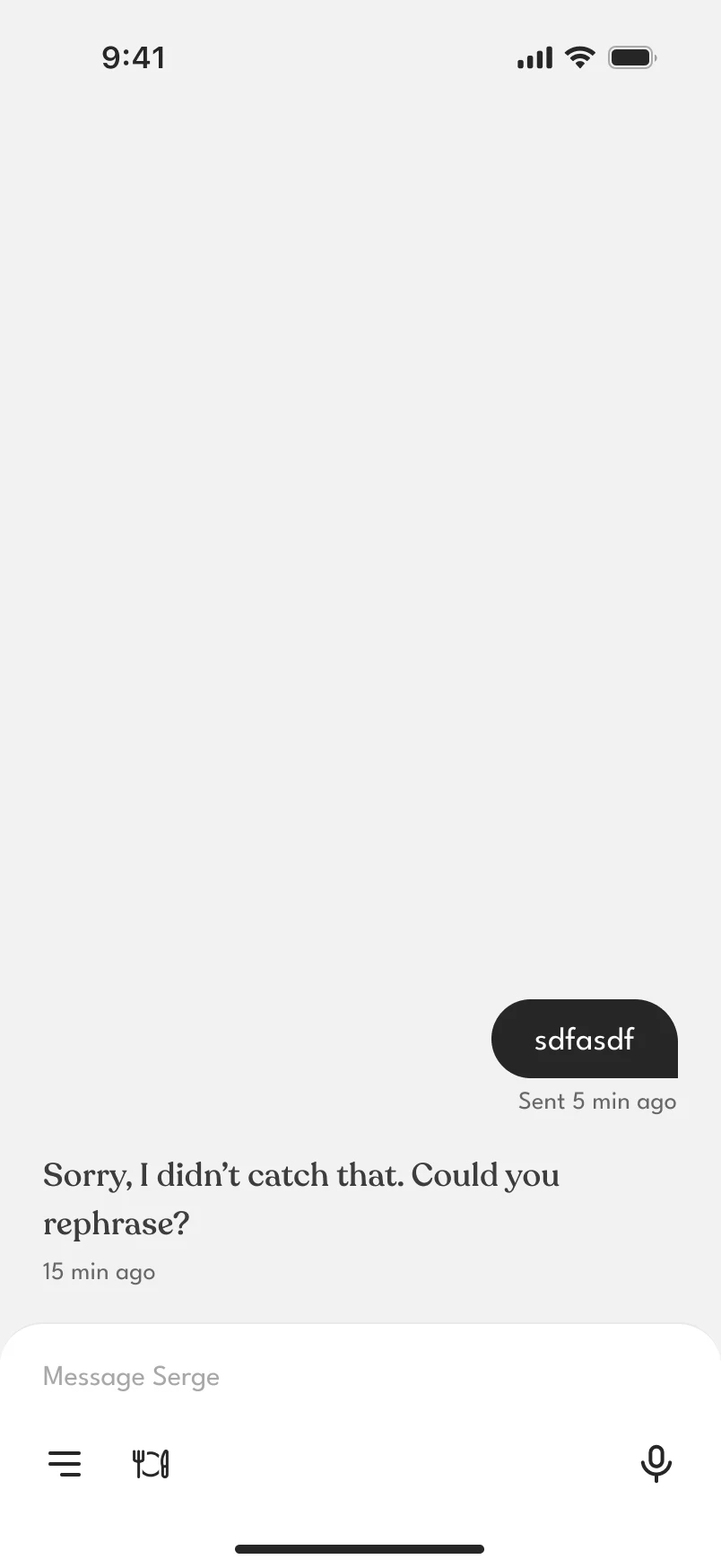
The assistant is the app, so its replies are set on the app’s own background and only the person’s messages are in a bubble. This also separates what was asked from what was answered, and the chat is easier to read.
Common answers are offered as chips, and a voice message works too.
Links
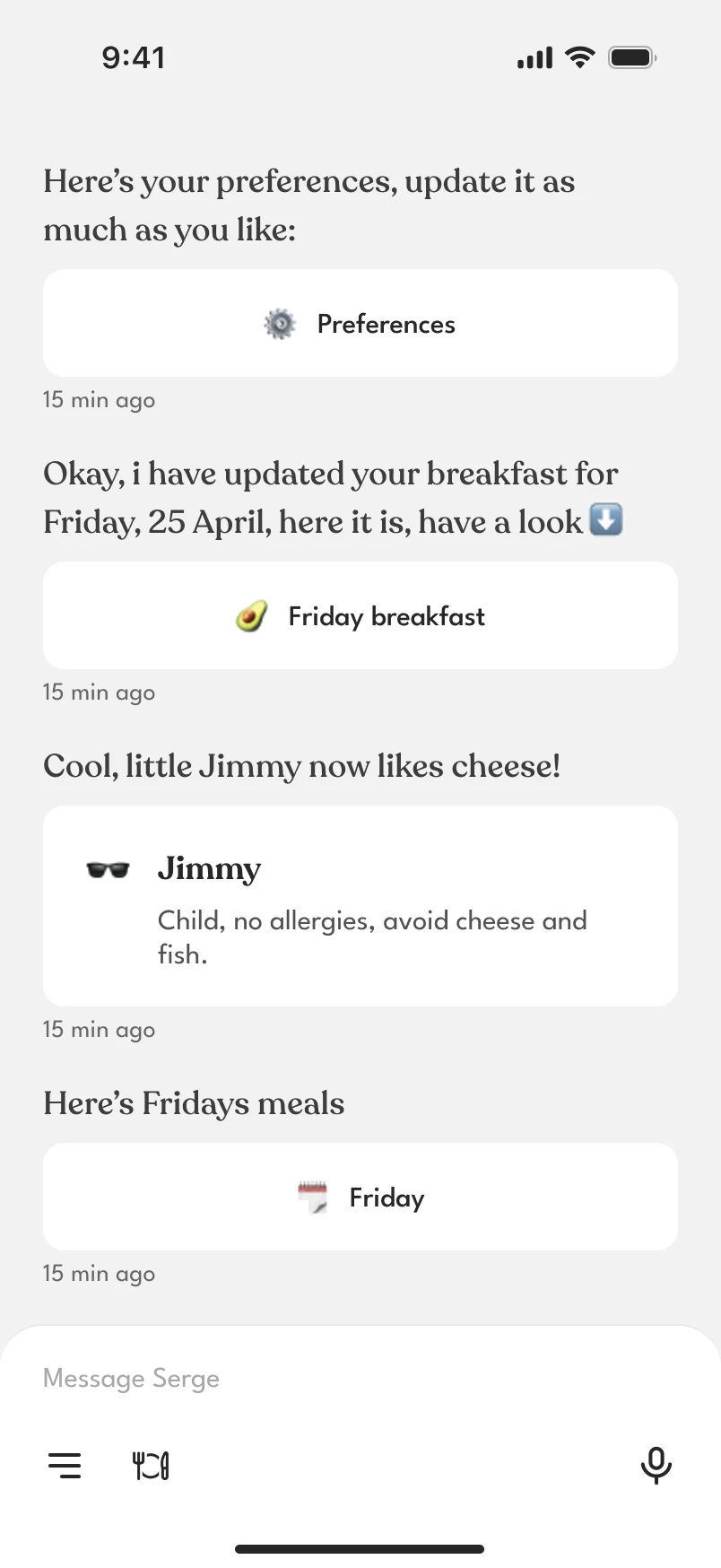
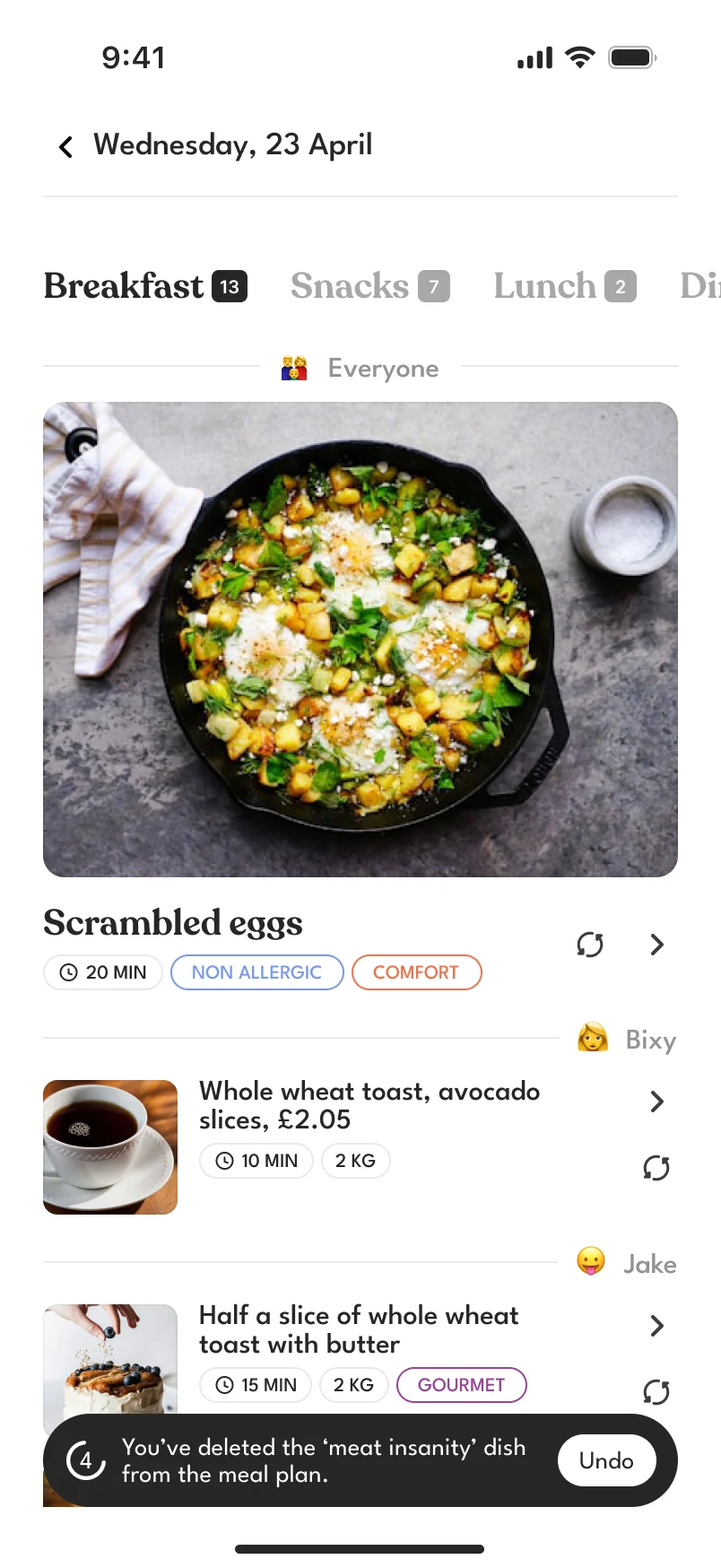
When the assistant changes something, it says so and links to the screen that changed, such as a meal, a day, a person’s card or the preferences.
Ways to plan
Starting a plan
A plan can start in five ways. Each ends with a plan card in the chat.
- Answer the assistant. It asks for the days, the budget and who is eating. The second time it remembers the family and asks only what has changed.
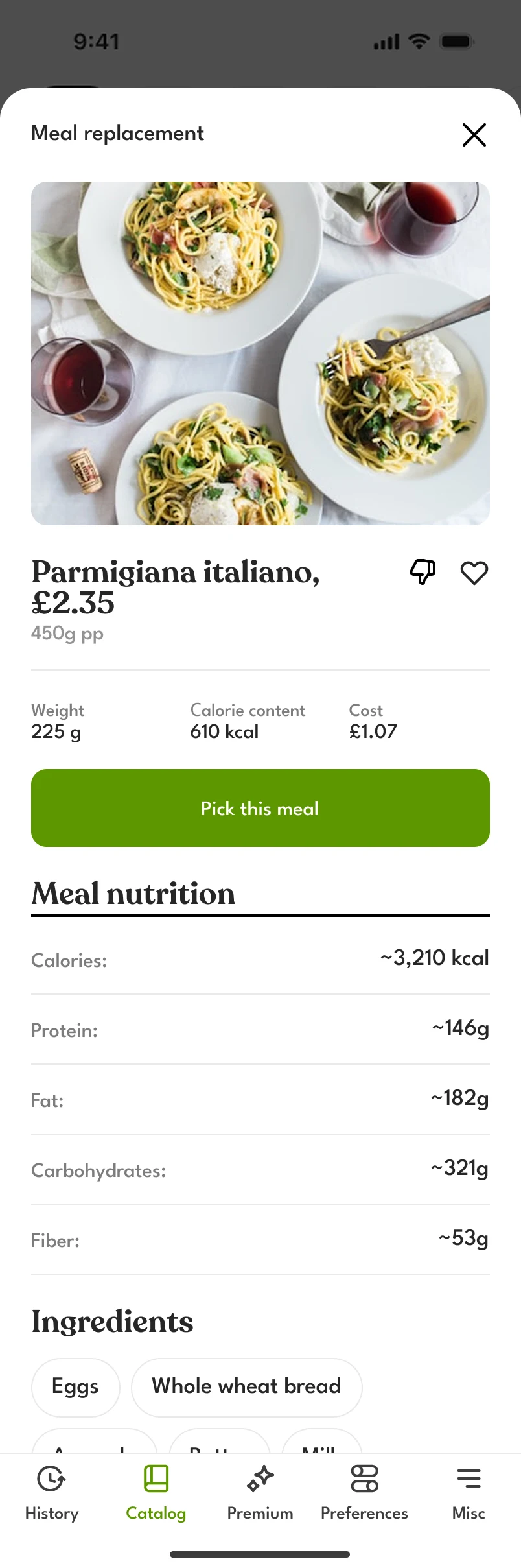
- Edit a suggested plan. Replace, remove or add a dish, by asking or by tapping.
- Pick a set. A ready-made plan with its price. If it contains allergens, the app asks before adding it.
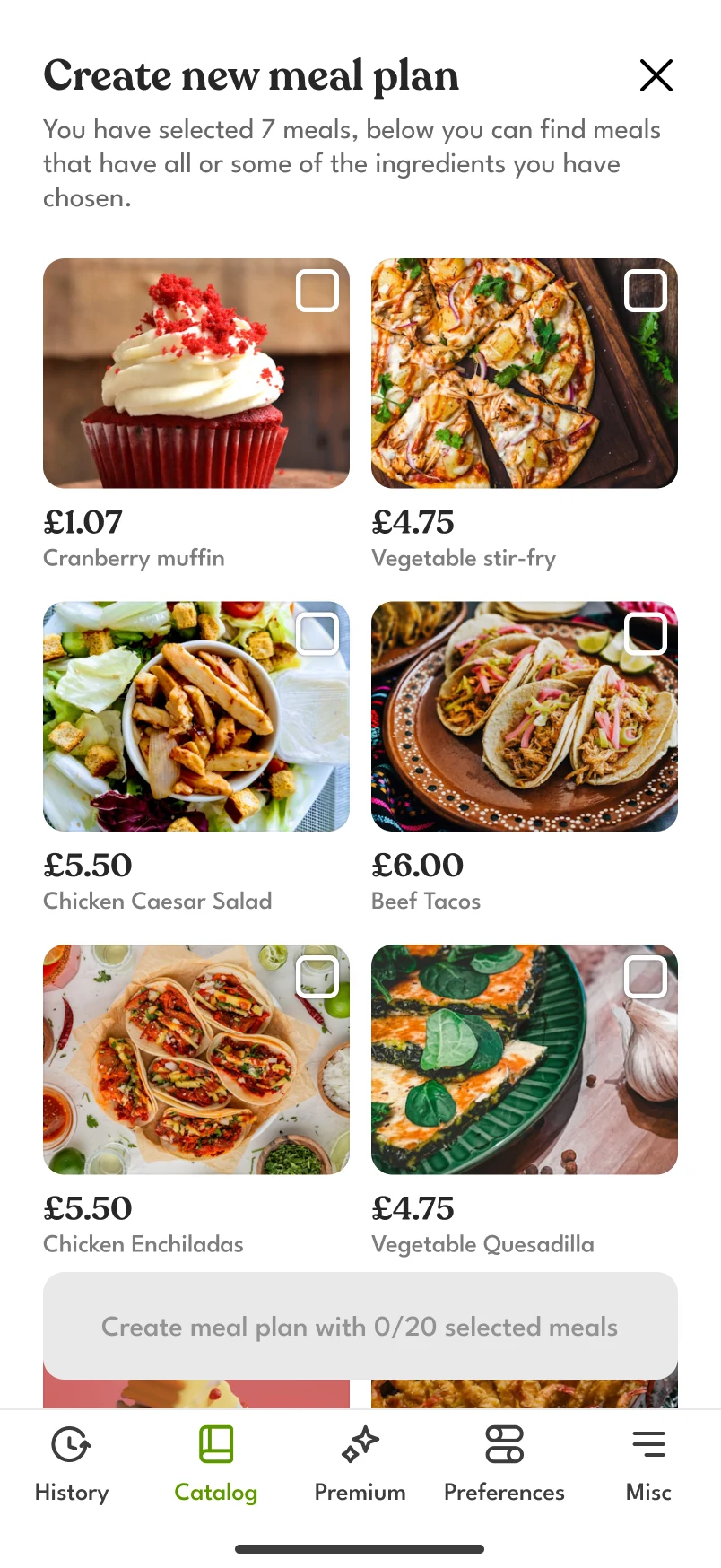
- Pick dishes. Tick up to 20 in the catalog, then add them to a plan or generate a new plan from them.
- Pick groceries. Tick up to 10 products, and the app shows dishes that use all or some of them.
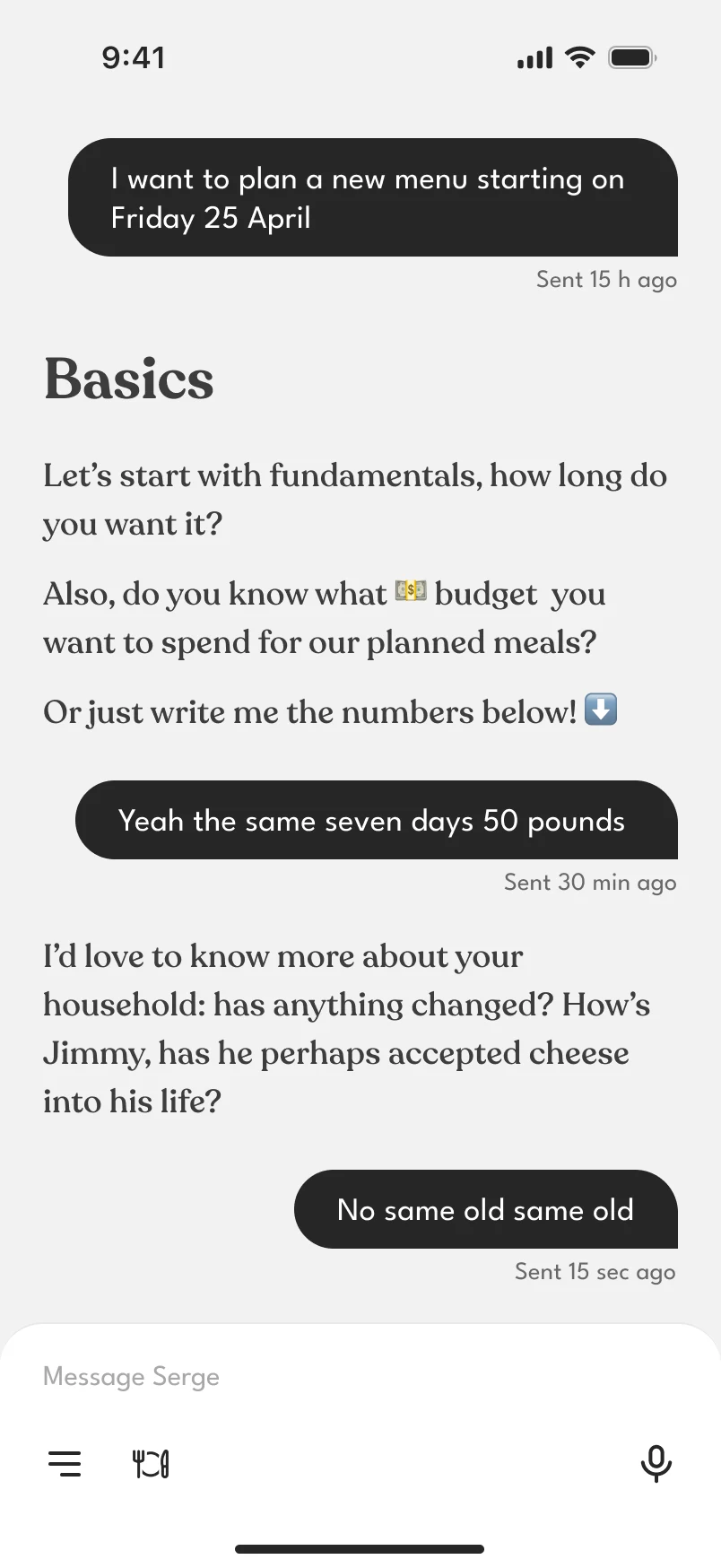
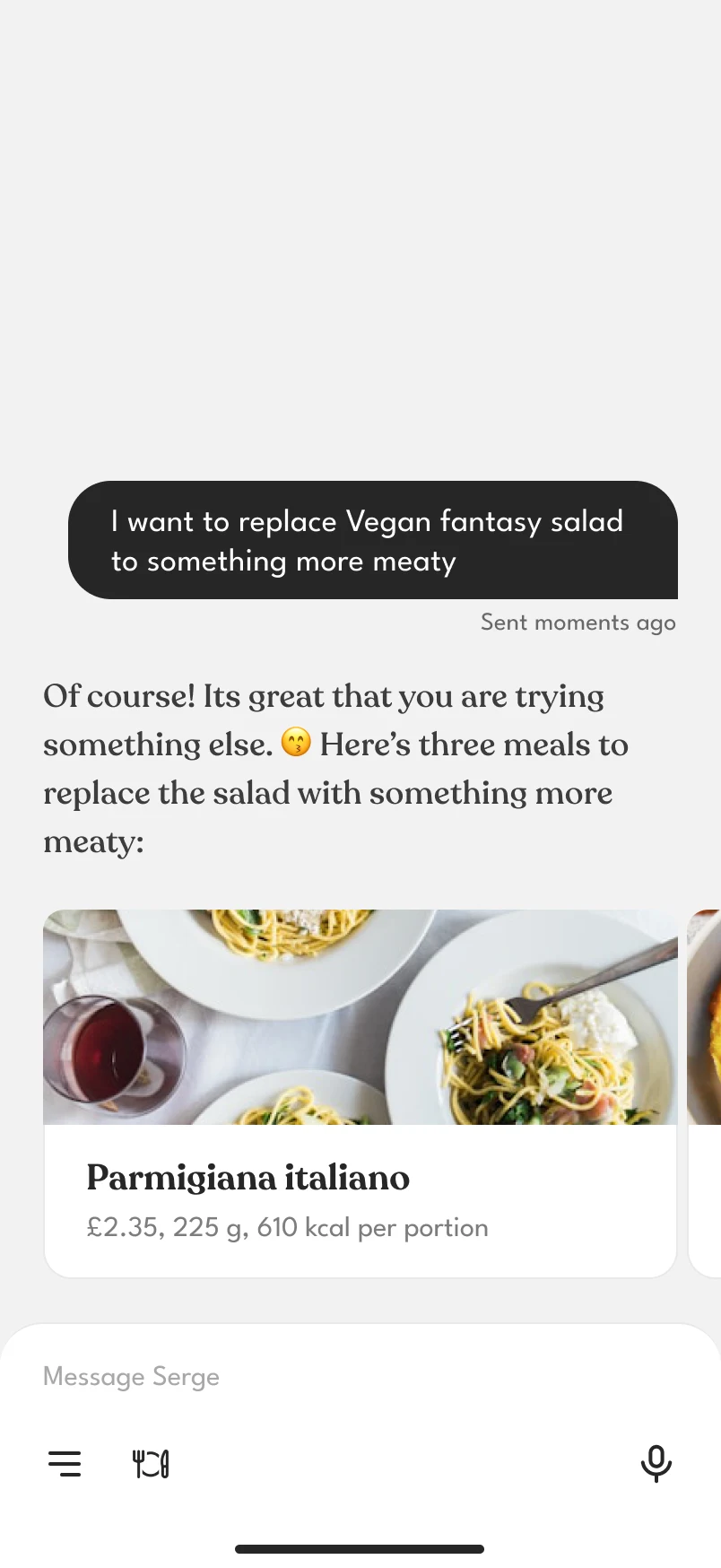
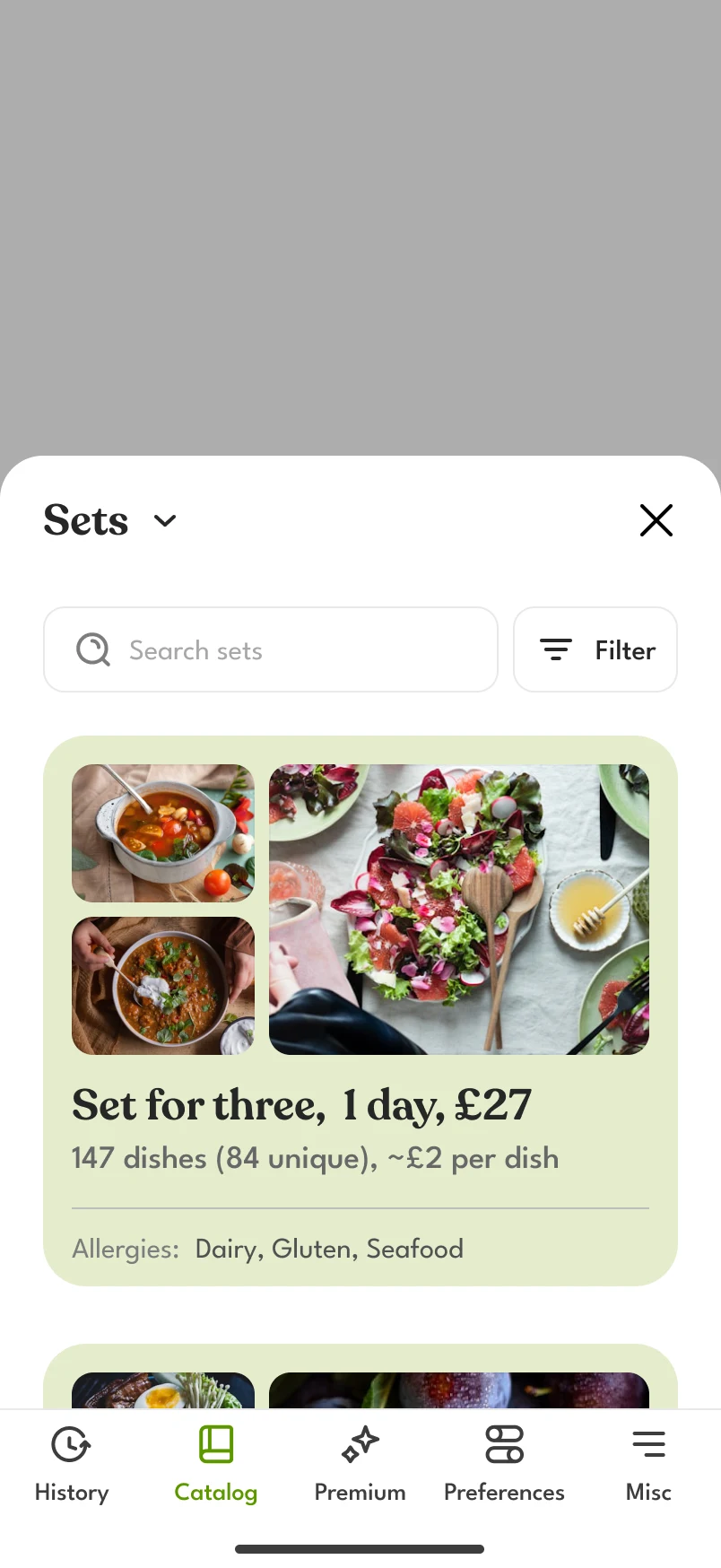
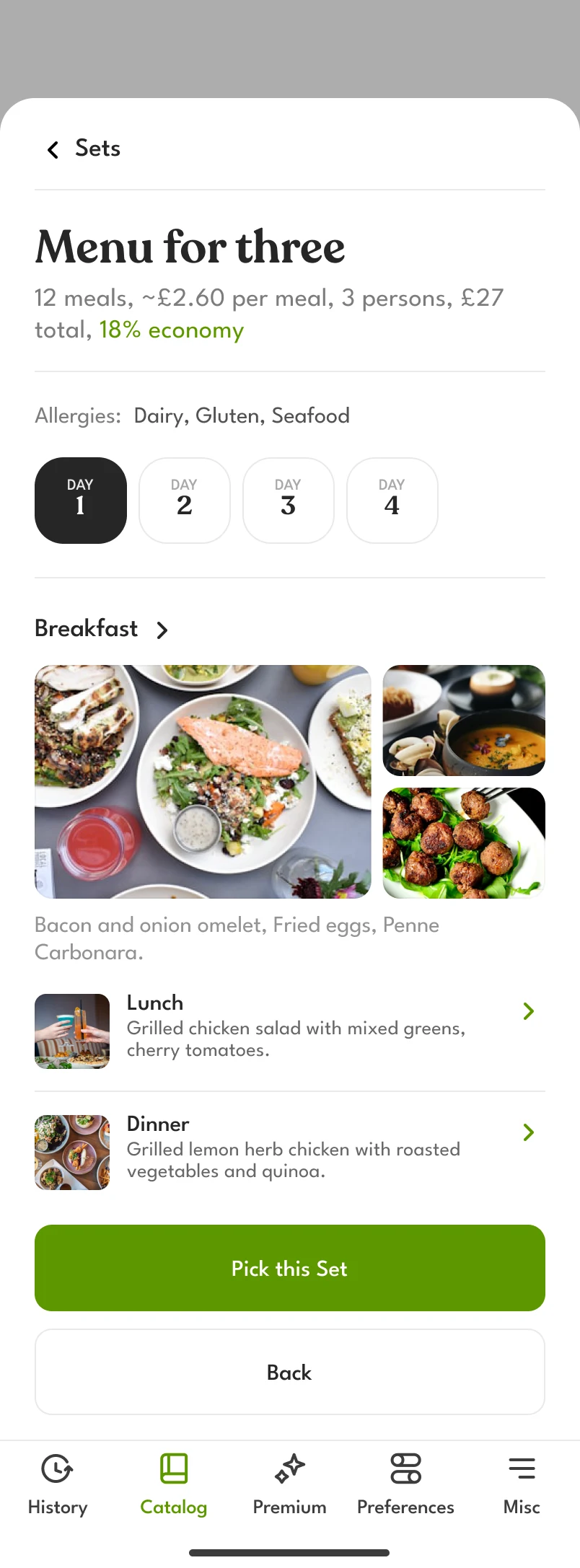
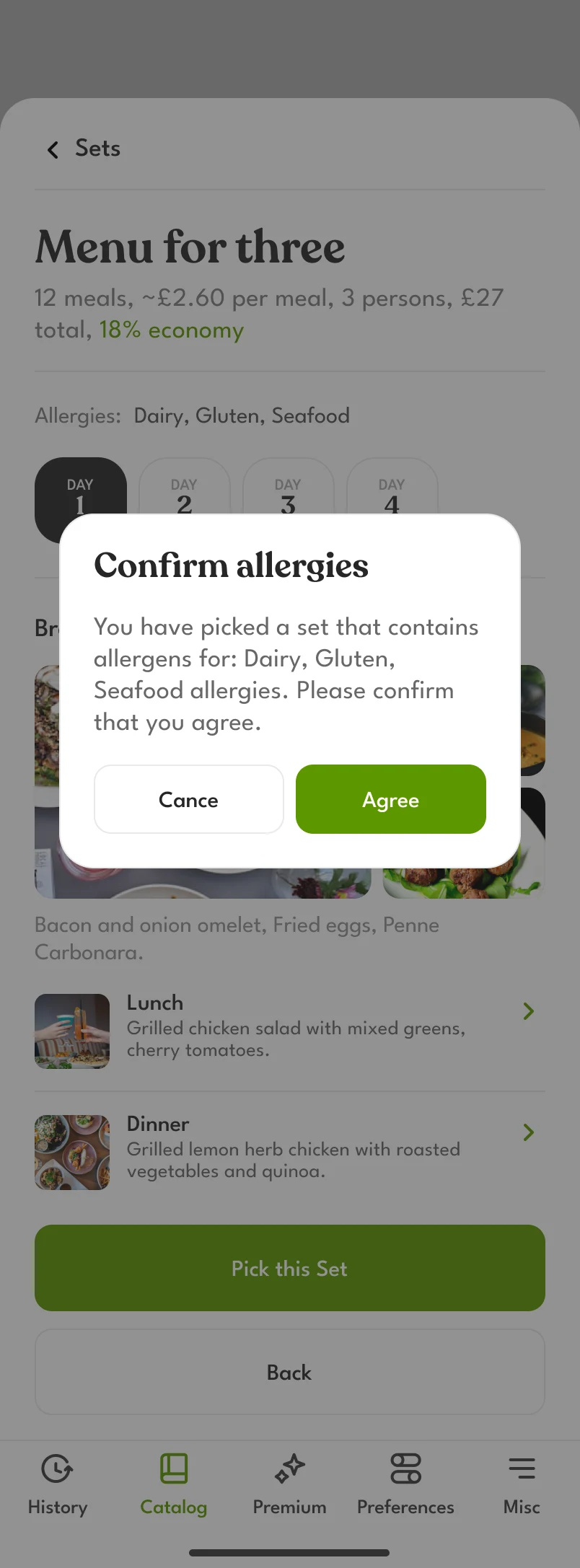
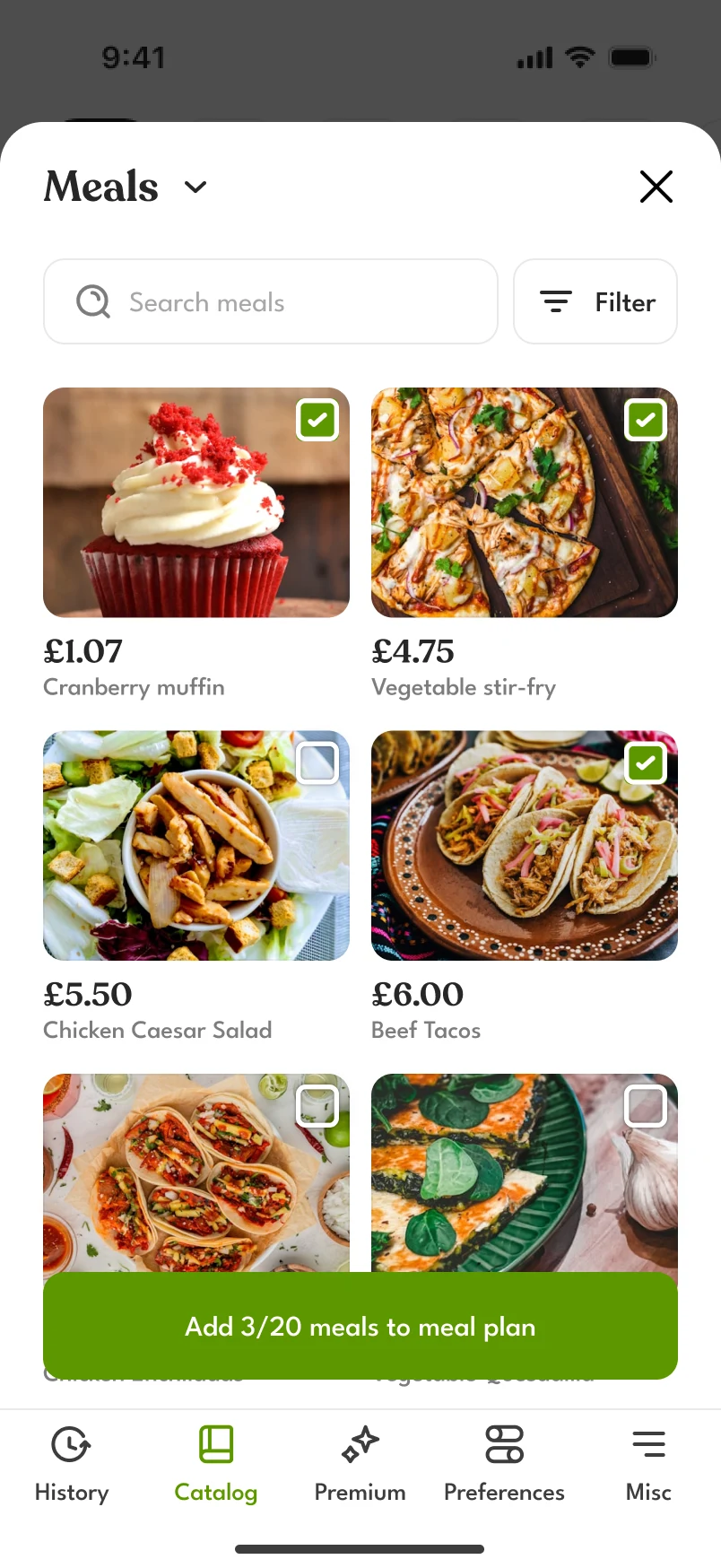
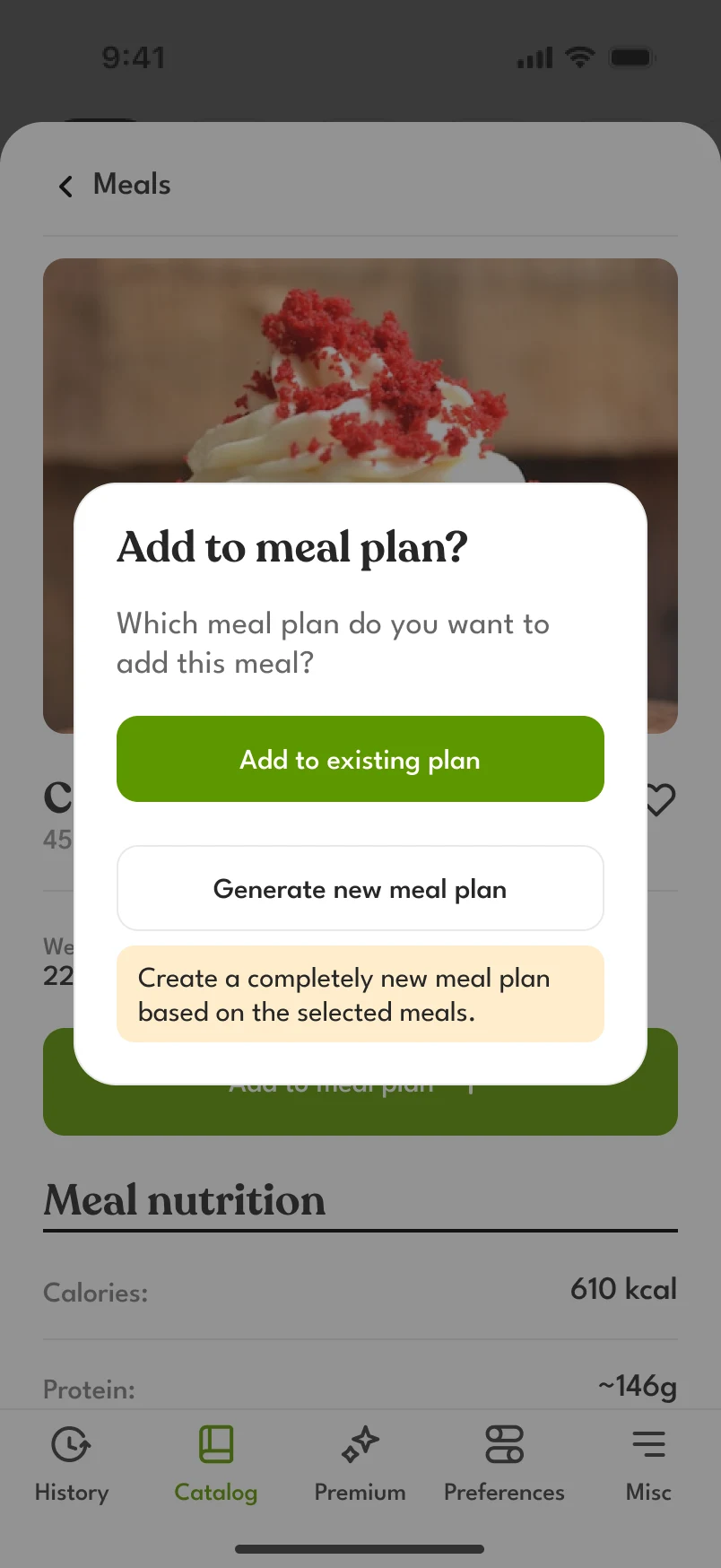
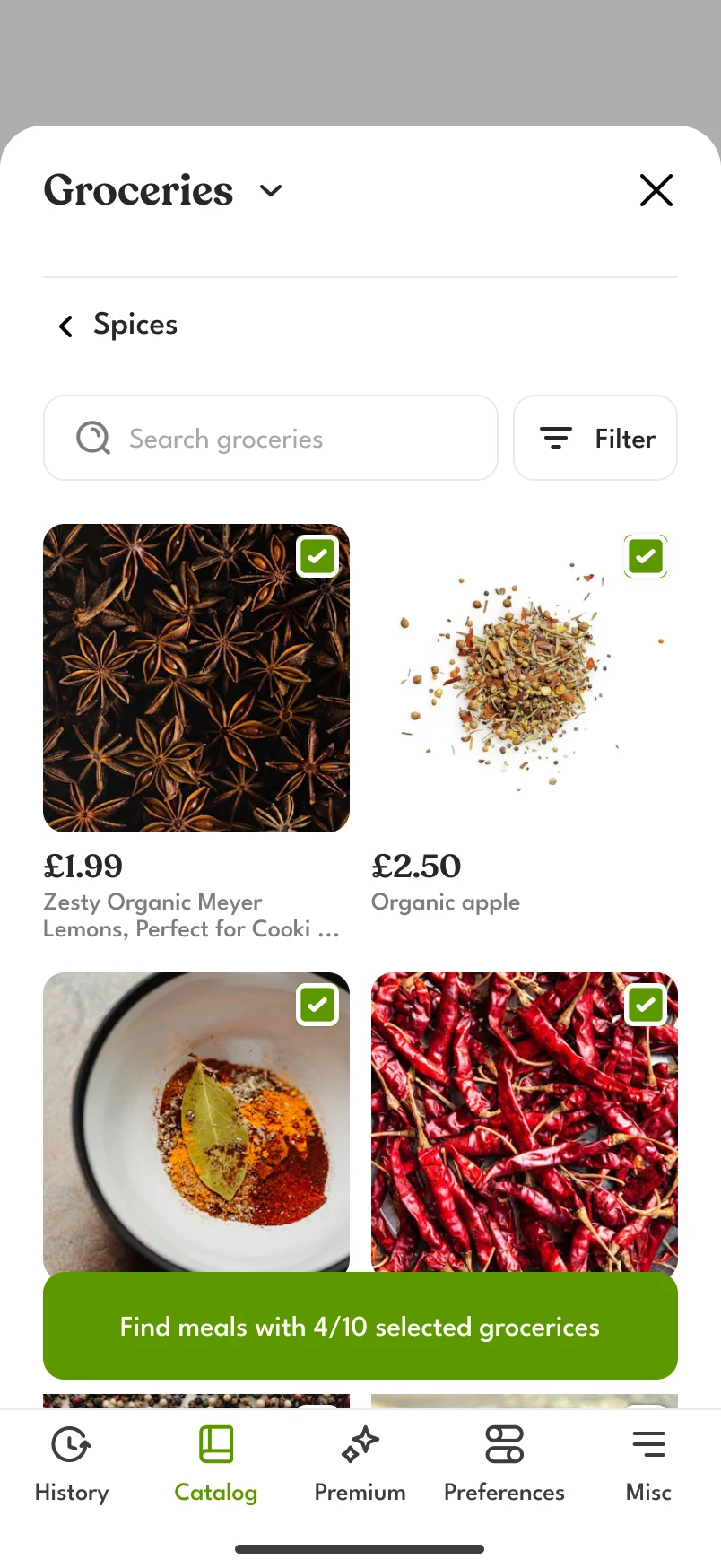
A past plan can also be repeated from History. It goes on the closest free day.
By tapping and by asking
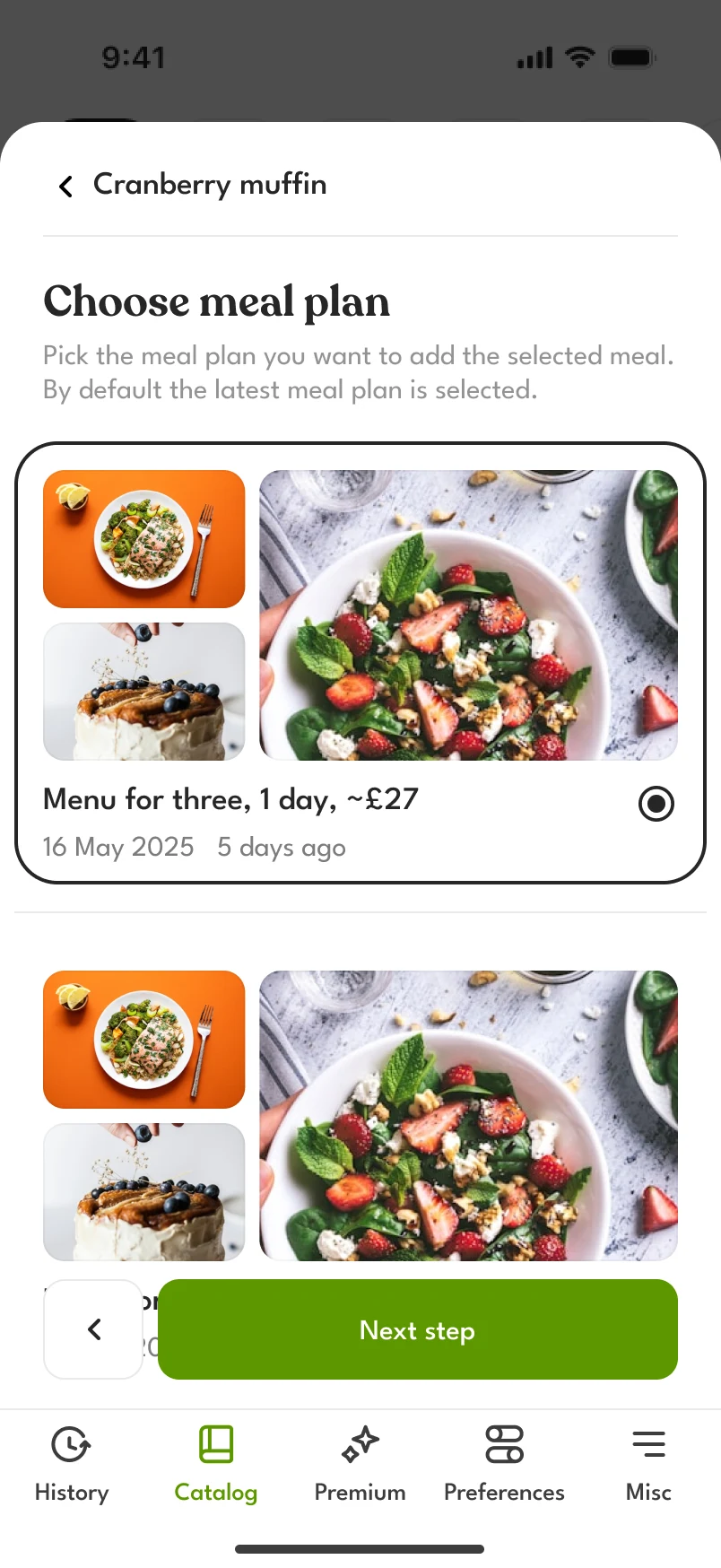
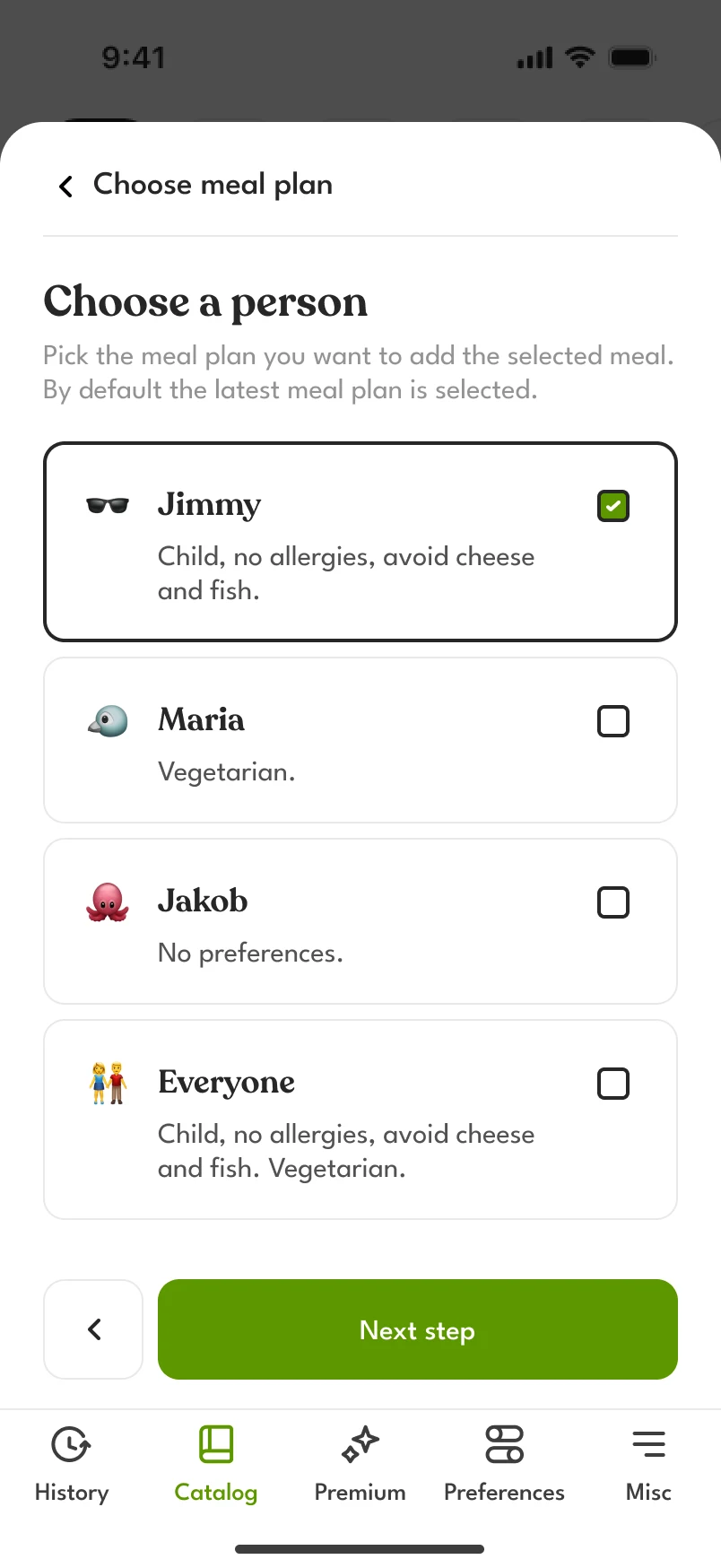
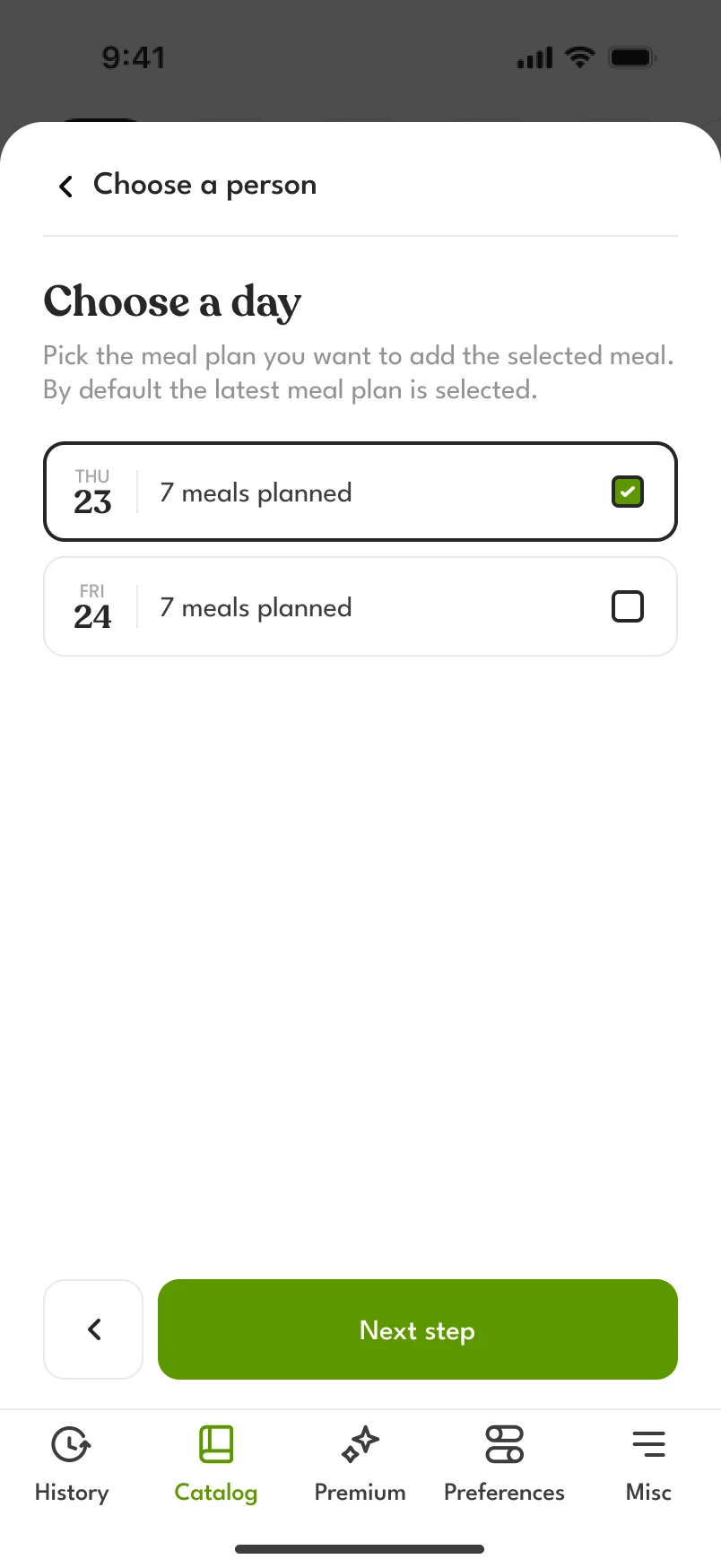
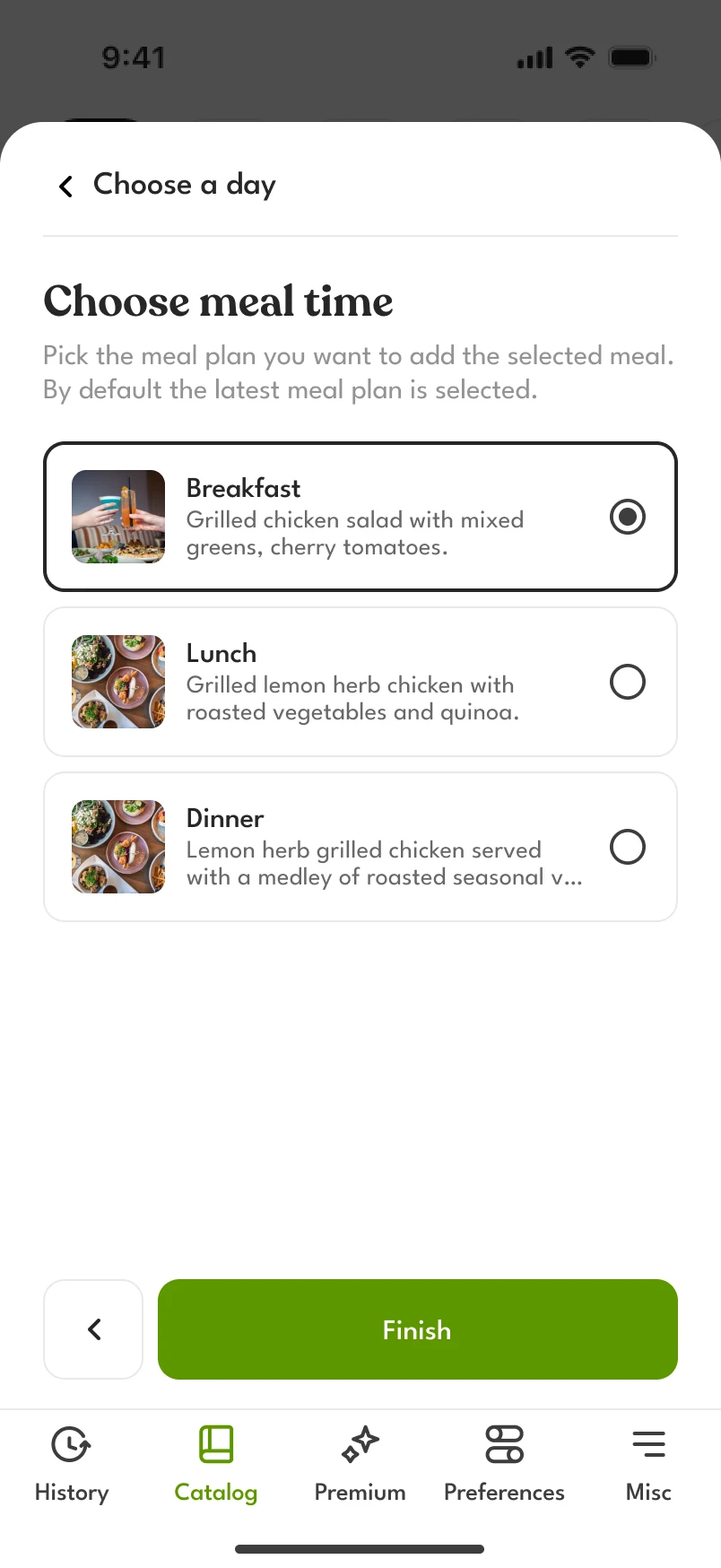
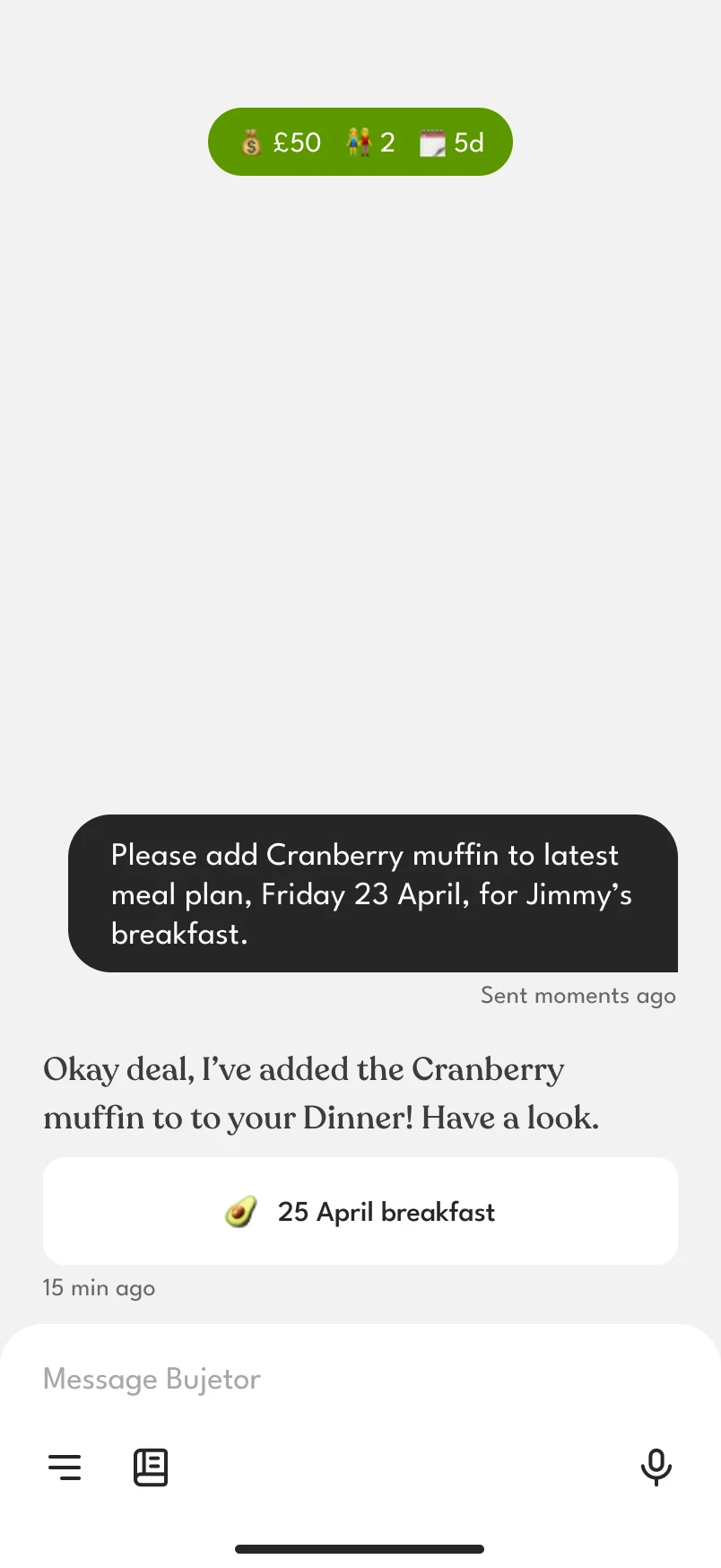
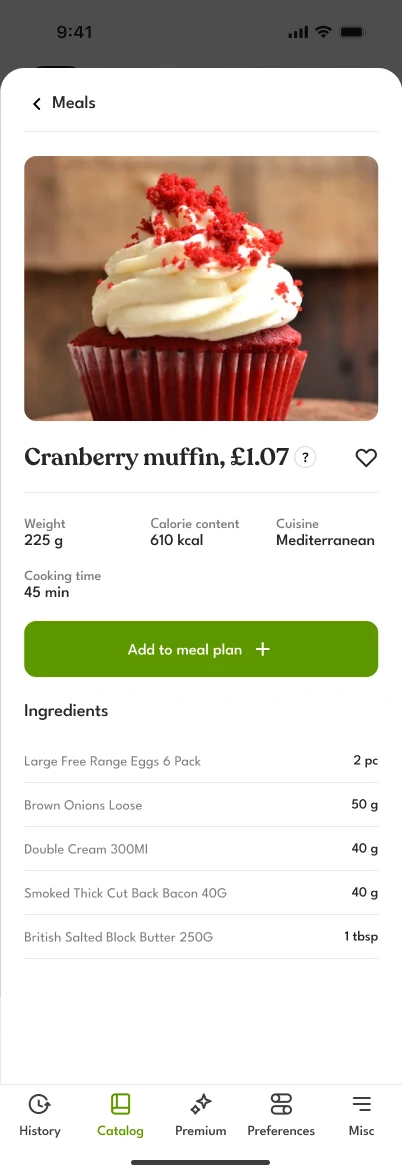
Adding a dish from the catalog by tapping takes four choices: which plan, who for, which day and which meal. In the chat it is one sentence: “Please add Cranberry muffin to latest meal plan, Friday 23 April, for Jimmy’s breakfast.” We kept both. Asking is quicker for someone who knows what they want, and the four screens work the way people expect a form to work.
The catalog
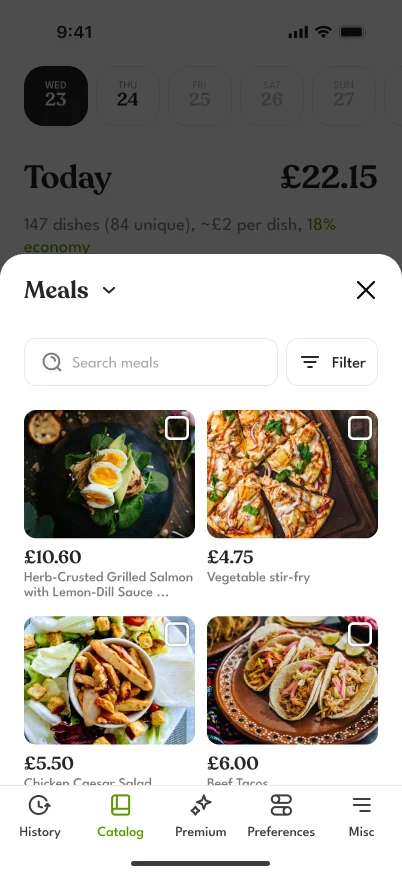
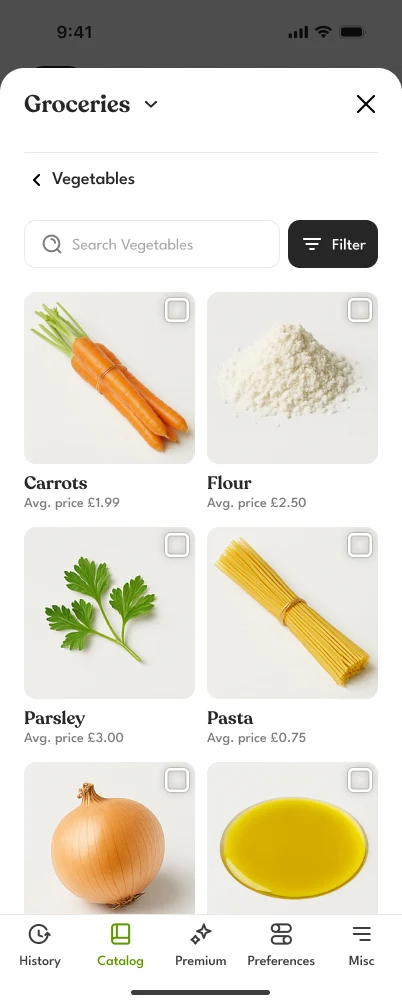
One sheet with three sections: meals, groceries and sets. It has search, and filters for price per dish, meal time, cooking time and allergies. Prices are those of the store the person chose.
When things clash
Conflicts
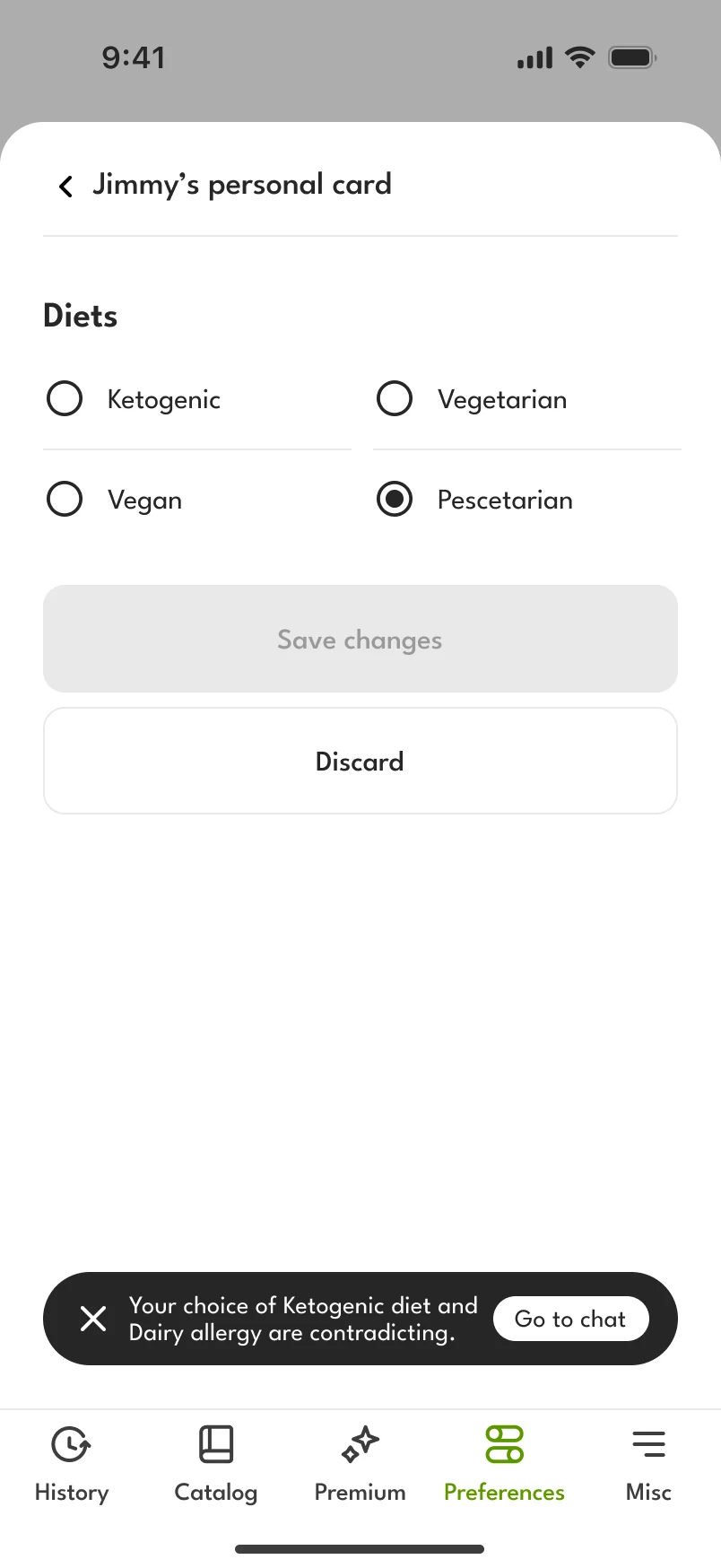
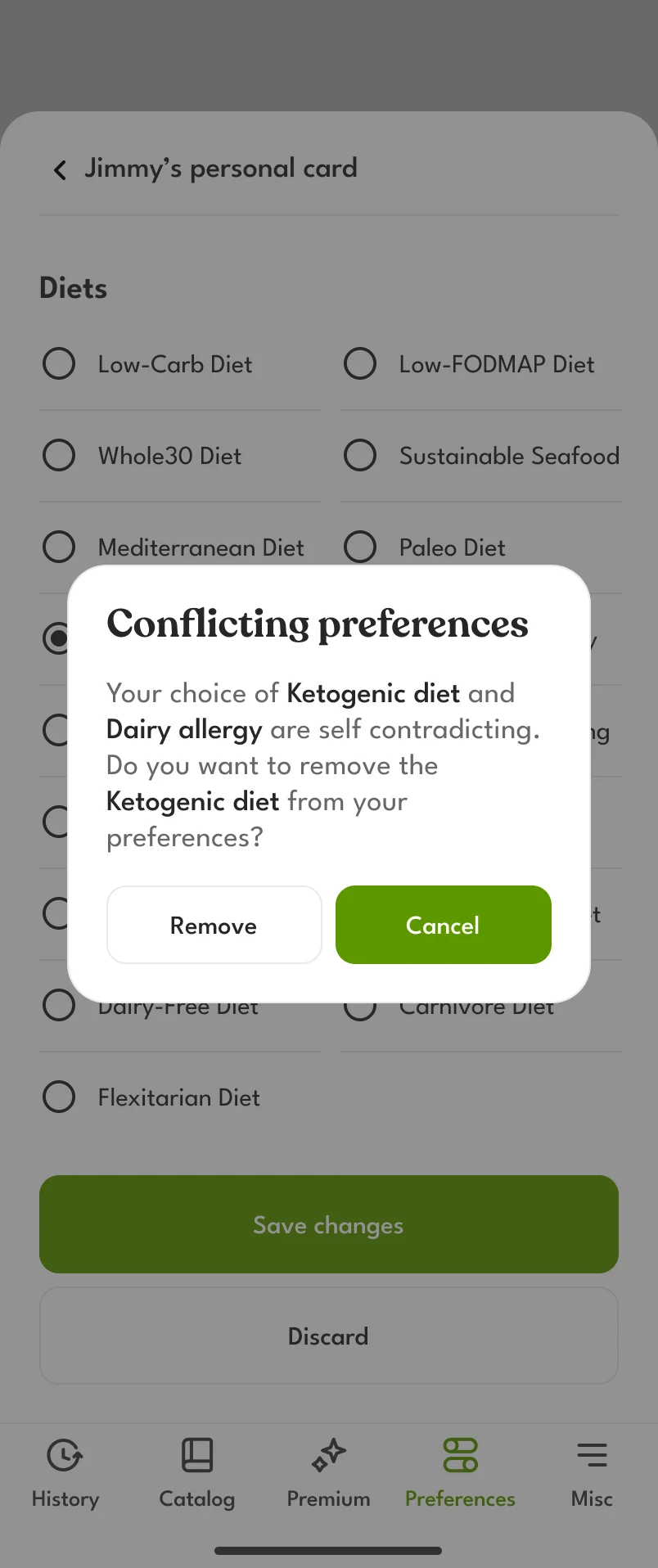
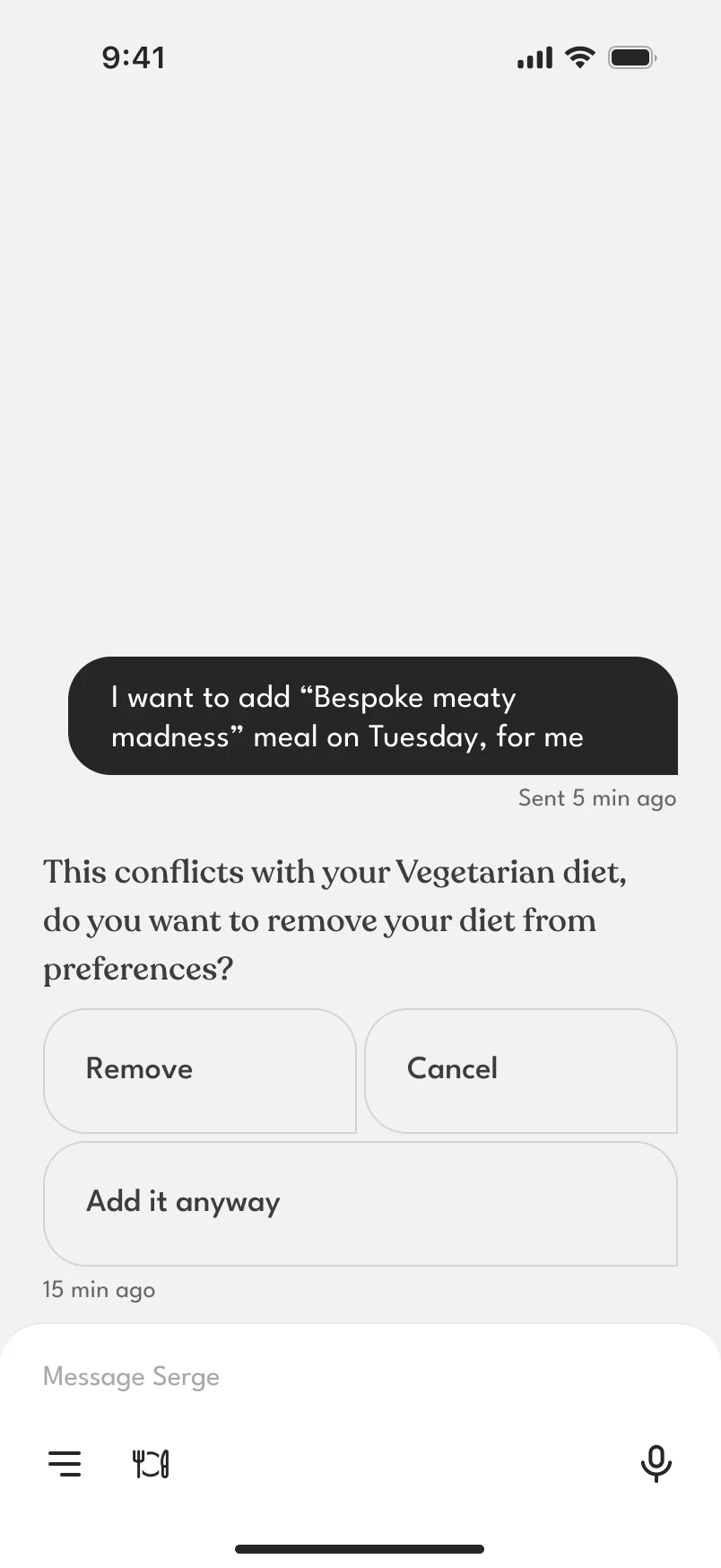
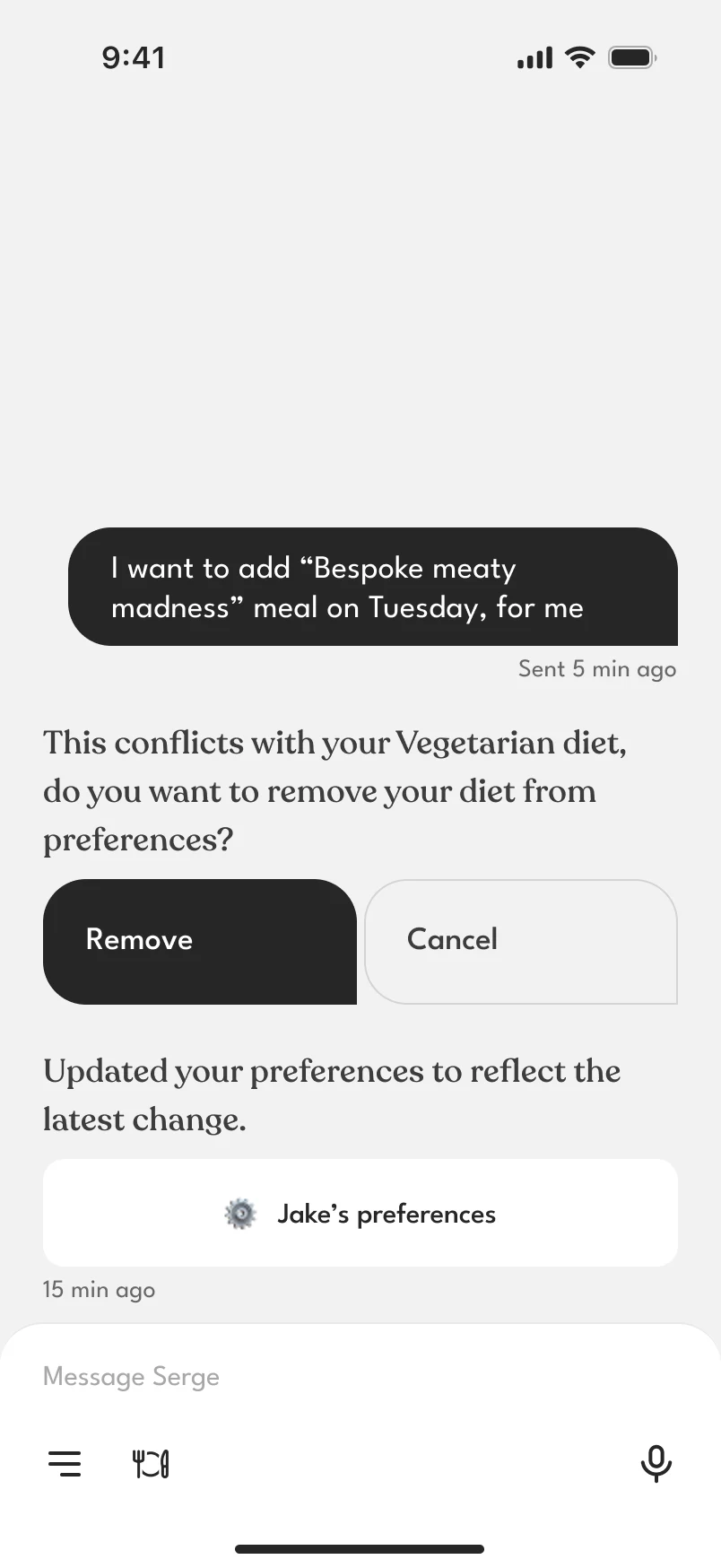
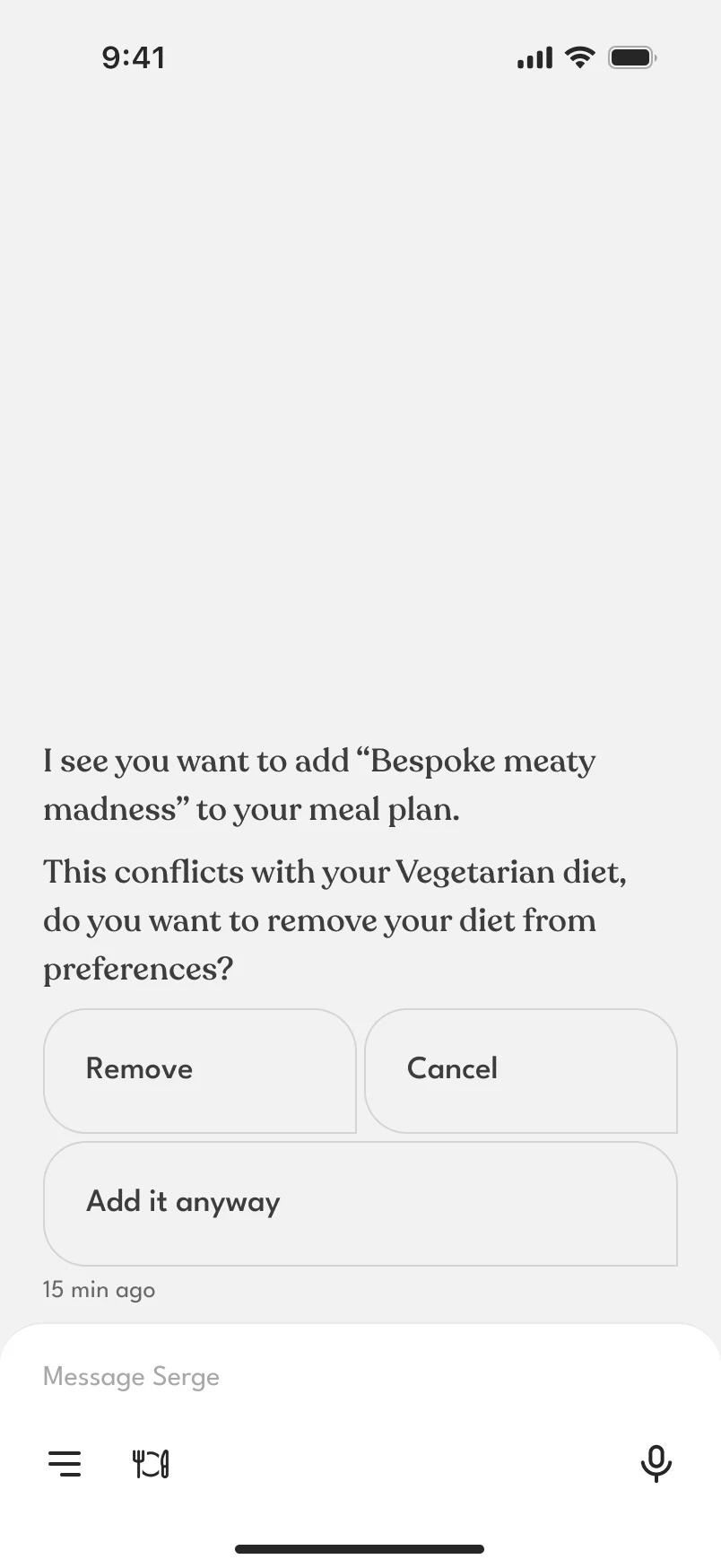
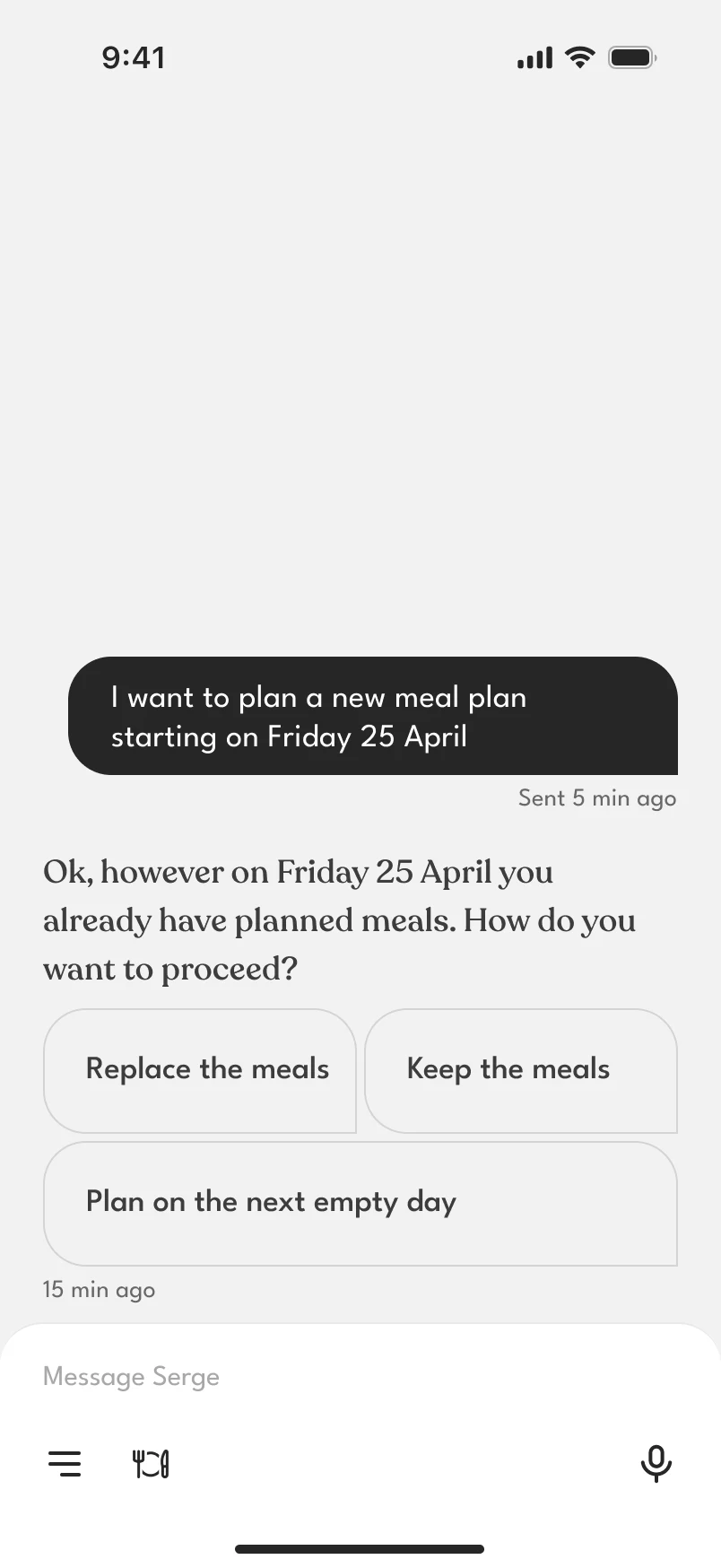
A family’s rules often conflict. A diet contradicts an allergy, a vegetarian is given a meat dish, a new plan is set for a day that is already planned. The app asks what to do and offers the answers.
When a person adds such a dish themselves, we didn’t want to interfere. The app says what it has noticed, and “Add it anyway” is one of the answers.
Where it stands
The app is in development. The client and the testers approved the product model and praised it. Most of the feedback was about the business side, which is integrating retailers and delivering the food. That work is still open.
The phone on the cover is iPhone 14 Max (Blend) by fiedleradam358, CC BY 4.0, with its screens replaced.